Approvals
The Approval Centre is where managers action requests that require a second pair of eyes — Settlement corrections, cash variances and stocktake corrections.
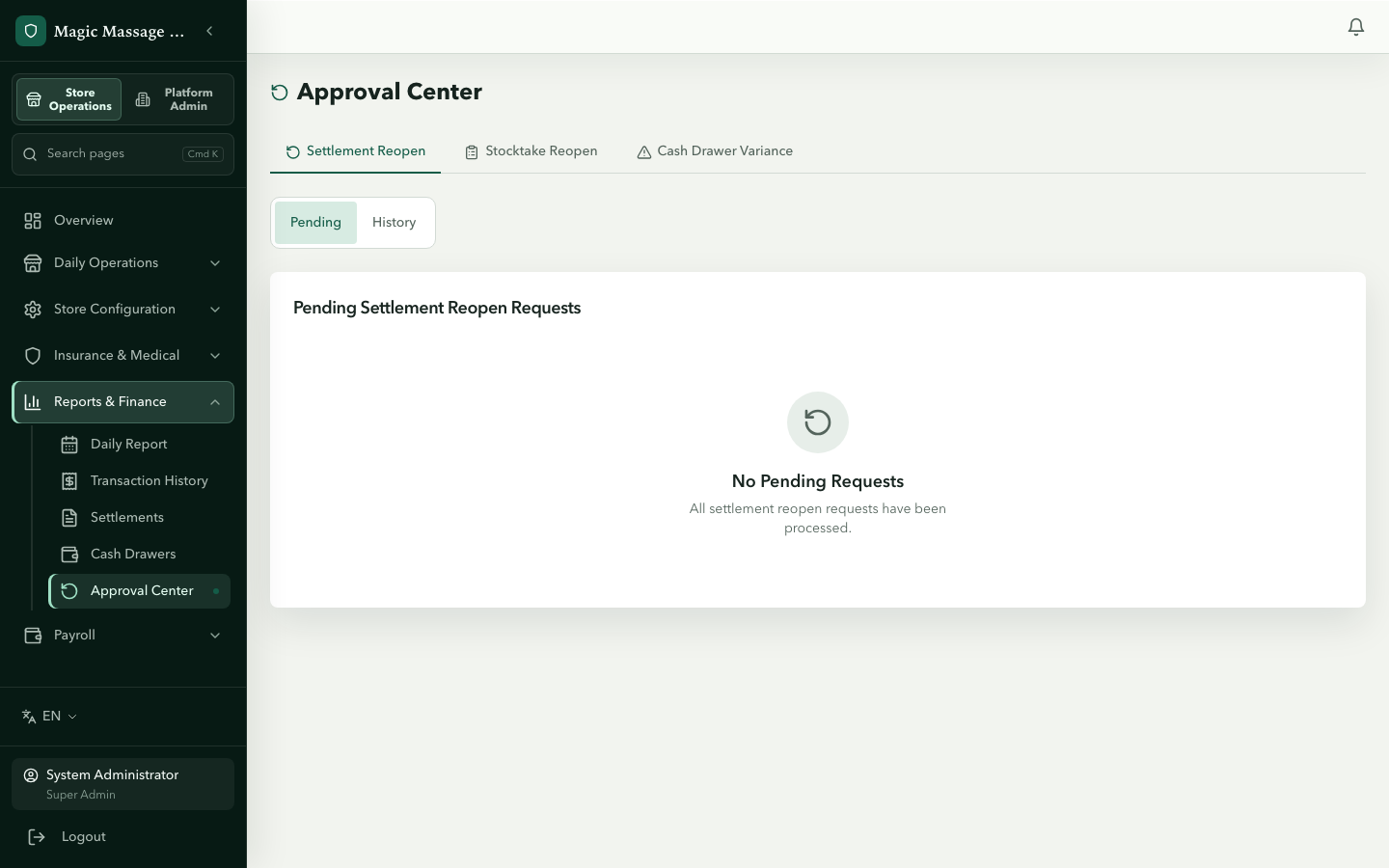
Accessing the Approval Centre
Admin → Reports & Finance → Approval Center. Reach it from the sidebar, or from the Review Store approvals link on the Owner intelligence page — there is no pending badge on the dashboard.
The page has four tabs:
| Tab | What it holds |
|---|---|
| Settlement Reopen | Requests for a new correction version of a settled Business Period |
| Financial Correction | Requests to add or fix a payment/expense in an already-settled period (see below) |
| Stocktake Reopen (if inventory enabled) | Requests to reopen a confirmed stocktake |
| Cash Drawer Variance | Drawer variances awaiting sign-off |
Each tab shows Pending items by default; toggle to History to see past decisions.
Settlement correction requests
When a sealed Settlement has an error (wrong terminal total, missing payment entry), POS staff use Request reopen on the Settlement detail page to request a versioned correction. The label starts the governed correction workflow; it does not make the closed Business Period active again.
Approving / rejecting
- Open the pending request — you'll see who requested, when, and the reason.
- Approve (with a note) → the requestor can make the permitted correction and produce the next Settlement version for the same Business Period and Business Date.
- Reject (with a note) → the request is closed; the existing sealed version remains current.
Separation of duties. Settlement reopens and cash variances are requested from POS by an employee and approved in Admin by an admin account — two separate identity systems, so the requester can never be the approver. Stocktake reopens and financial corrections additionally reject an explicit self-approval at the API.
Financial correction requests (closed periods)
The Financial Correction tab reviews requests to add a missing payment or expense, or to fix the method or amount of a payment, for a Business Period that has already been settled. The original rows are never edited: approval appends correction rows, their ledger entries and a new sealed Settlement version in one step, and a different admin must approve.
Two things to check on the request card before you approve:
- Adjustment Note preview. If the payment being corrected belongs to a Visit that has an issued Tax Invoice, the card shows the Adjustment Note (decrease or increase, price before → after, GST change, note date) that will be issued at the moment you approve. What you see is what gets issued — it was frozen when the request was made, and the system refuses the approval if the invoice changed in the meantime. The original invoice is not altered and is never replaced automatically. Rejecting issues nothing. Which BAS period the note belongs to has not been validated by an accountant.
- HICAPS claim reference. A correction that touches a HICAPS payment must quote the HICAPS claim reference. Approving it also queues a HICAPS reconciliation case in Financial Exceptions; the health fund balance is not reconciled automatically — someone still has to close that case by hand.
If the Visit has more than one open Tax Invoice, or an old invoice without GST facts, the request cannot be created; deal with the invoice first.
Cash drawer variances
When the Final Settlement cash count doesn't match expected cash, the drawer enters VARIANCE state. The Settlement is still created (the mismatch is recorded, not hidden), but a manager must sign off.
Approving a variance
- Open the pending variance — you'll see the expected amount, counted amount and gap.
- Either Approve Variance (the gap is retained on record as-is) or Send to Investigation, each with a note explaining the variance (e.g. "float adjustment not recorded", "staff bought lunch from the tin without recording expense").
- From investigation you have two exits: Resolve Investigation accepts the counted figure as a real shortage/overage (amount unchanged), while Create Correction Version asks for the corrected closing balance and produces a new drawer version plus a draft settlement version.
Statuses run pending → approved, or pending → investigation → resolved / applied. The note is permanent record — it answers "what happened to the money" for anyone reviewing later.
Stocktake reopens (if inventory enabled)
A confirmed stocktake locks stock levels. If a counting error is discovered:
- A stocktake reopen request is submitted.
- A different admin approves → a new draft stocktake version is created, seeded from current stock. The already-applied version and its stock movements are never rewritten.
- The new version is counted, confirmed and applied like any other.
Best practices
- Clear approvals daily — open the Approval Center from the sidebar each morning; let items pile up and you lose the context of what happened.
- Always add a note — "approved" with no explanation is less useful than "approved: $5 short was a lunch expense not recorded".
- Review patterns — repeated variances at the same store/shift may indicate a training issue or something worse. The approval history is your evidence.
Who can approve
| Role | Can approve |
|---|---|
| Store manager | Stores bound to their account — settlement, drawer and stocktake requests; by default they can request a financial correction but not approve one (the tenant admin can grant the approve permission under Role Permissions) |
| Regional manager | Stores in their store group; approves financial corrections by default (a permission the tenant admin can revoke) |
| Tenant admin | All stores of the business |
| Super admin | All stores |
Scope is whatever stores your account can access. The POS "manager" is a separate employment role, and POS users request rather than approve.
Approving is also bounded by role level: even with the permission, an approver can never action a request raised by a higher-level role — a store manager cannot approve a regional manager's financial correction or stocktake reopen.