Business Period settlement
A Business Period is the store's current financial working period. Its Business Date is the label staff and reports use for that period. The period does not end automatically at midnight: Final Settlement closes it and opens the next one.
Settlement is the sealed, versioned reconciliation record for one Business Period. It summarizes source facts such as payments and refunds; it does not replace those records or the other financial records you can drill into.
Before Final Settlement — checklist
| ✓ | Check | Where |
|---|---|---|
| ☐ | All services completed (nothing stuck "in progress") | Dashboard pending panel |
| ☐ | All visits closed or cancelled — paid is not enough; each one must actually be closed (or force-closed with a reason) | Dashboard → Waiting service / Waiting payment panels |
| ☐ | Drawer expenses all recorded | Cash Drawer page |
| ☐ | Terminal batch reports printed (EFTPOS / HICAPS) | Your terminals |
| ☐ | Physical cash counted | The tin |
Final Settlement is blocked while any Visit of the period is still open — even a fully paid one. Close (or force-close) every Visit before you start.
Pre-Settlement is a preview
On the active POS, open Settlement and start Final Settlement. The panel first shows a fresh Pre-Settlement preview of the current period's recorded facts.
Pre-Settlement:
- does not save a Settlement draft;
- does not close the Business Period or advance the Business Date;
- does not freeze normal payments, refunds or other activity;
- can be cancelled and run again whenever you need a fresh check.
Use the preview to find unfinished work or unexpected totals before you commit.
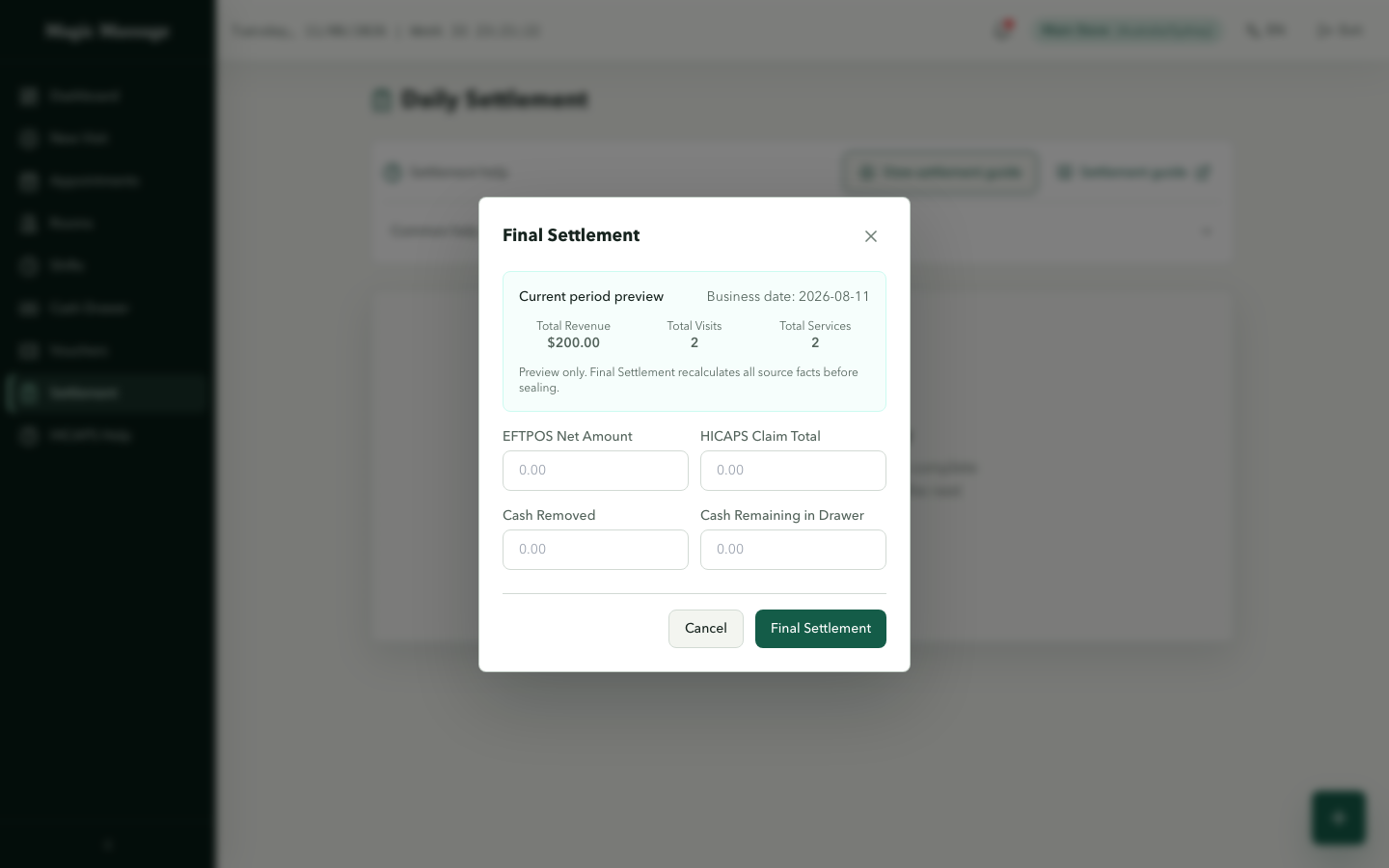
Complete Final Settlement
Only the store's currently active POS can initiate the initial Final Settlement. Admin can review Settlements and govern later corrections, but it does not create or seal the initial version.
- Check the fresh preview.
- Enter the terminal and drawer figures shown in the Final Settlement panel:
- EFTPOS net — from the terminal's settlement/batch report
- HICAPS claim total — from the HICAPS terminal report
- Takeaway cash — cash removed from the drawer
- Drawer remaining — what you counted in the tin
- Select Final Settlement and enter your PIN.
At confirmation, the system recalculates the current source facts and validates the reconciliation. If it succeeds, it creates sealed Settlement version 1, closes the current drawer and Business Period, and opens the next Business Period. There is no separate draft-and-seal step.
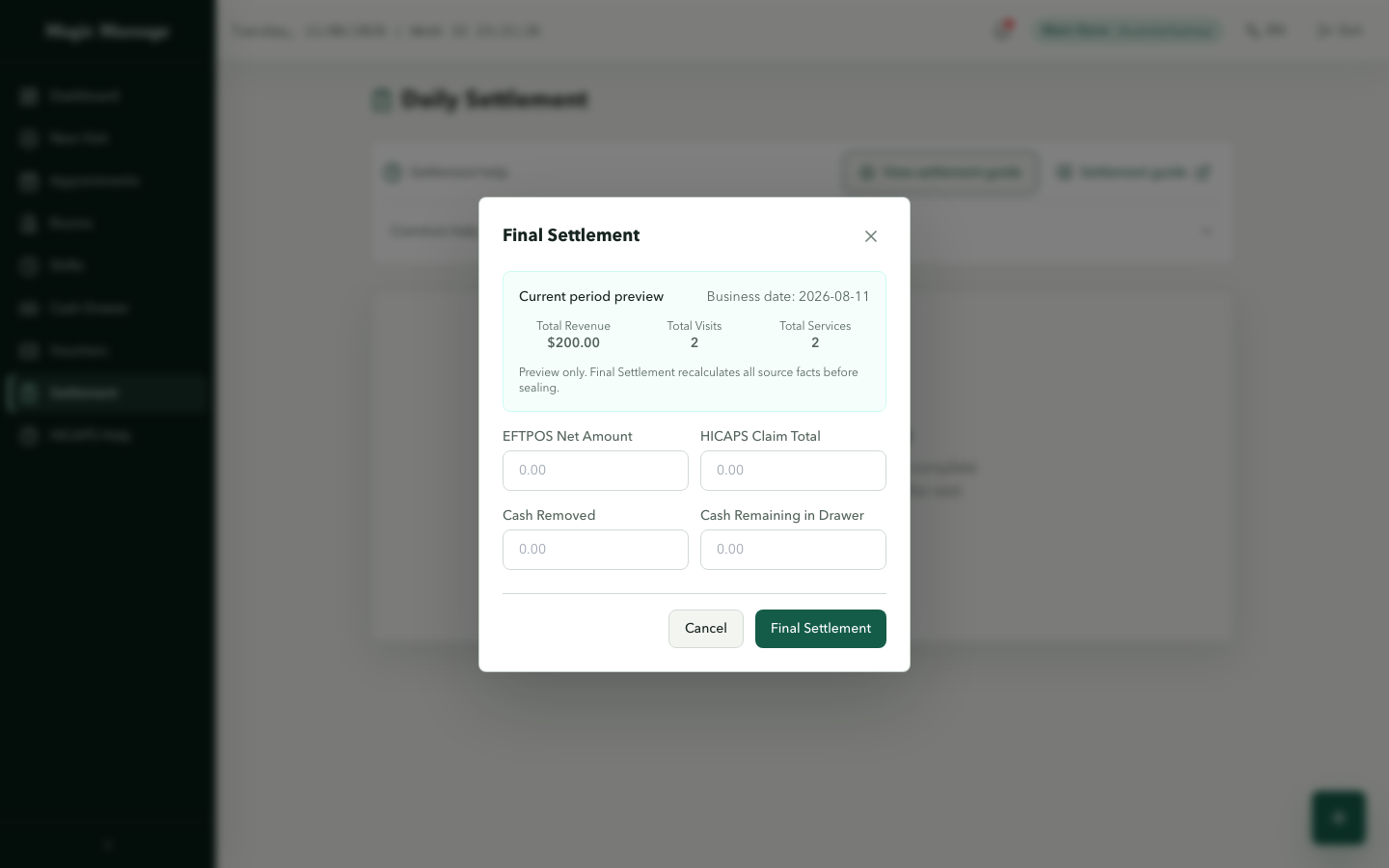
If the numbers don't match
- Terminal mismatch — recount against the batch report first; a missed HICAPS entry or a payment recorded under the wrong method is a common cause. Correct the operational record if needed, then run the preview again.
- Cash mismatch — the drawer goes into VARIANCE; Final Settlement can still complete, and a manager approves the variance in Admin with a note. Don't change the count to force a match — the honest number plus a note preserves what happened.
Final Settlement closes a period, not the calendar date
Suppose the Business Period labelled 10 Aug is finally settled at 9:00 PM. Another customer pays at 9:10 PM on 10 Aug. That payment keeps its real 9:10 PM timestamp, but it belongs to the newly active Business Period and its next Business Date.
The same rule applies whenever activity continues after Final Settlement: the calendar can still show the same date, but the previous Business Period is already closed.
Refunds after a period closes
A refund belongs to the Business Period in which the refund is actually recorded. The original payment remains in its original Business Period. A later refund therefore does not rewrite the earlier period or silently change its sealed Settlement.
Correct a settled period
Found an error after Final Settlement?
- From the Settlement detail, use Request Reopen and give a reason. This interface action starts a Settlement correction request. Only one pending request can exist per Settlement, and you cannot request a reopen once a newer Settlement version exists.
- A different authorised admin reviews the request in Admin → Approvals; self-approval is refused.
- If approved, make the permitted correction and produce the next Settlement version.
The correction stays attached to the original Business Period and Business Date. It does not make that closed period active again, and work recorded now continues to belong to the current active period.
No automatic Final Settlement
Final Settlement is a deliberate action on the active POS. A reminder near closing time may prompt staff to perform it, but the system does not create an automatic draft or complete Final Settlement for you.
Confirming non-trading dates
If the active Business Period had no trading activity, a local manager can use the non-trading confirmation on the settlement or unopened-drawer page. Select the last non-trading date, enter a reason and verify the manager PIN. This records explicit non-trading evidence and advances the empty period; it creates no fake income, payment or Daily Settlement. Existing activity must follow normal Final Settlement. Future dates and stale or conflicting period requests are rejected. These confirmed dates can appear as zero-activity days in operating reports.