Appointments & roster
Manage your team's schedule and view cross-store appointment data from Admin.
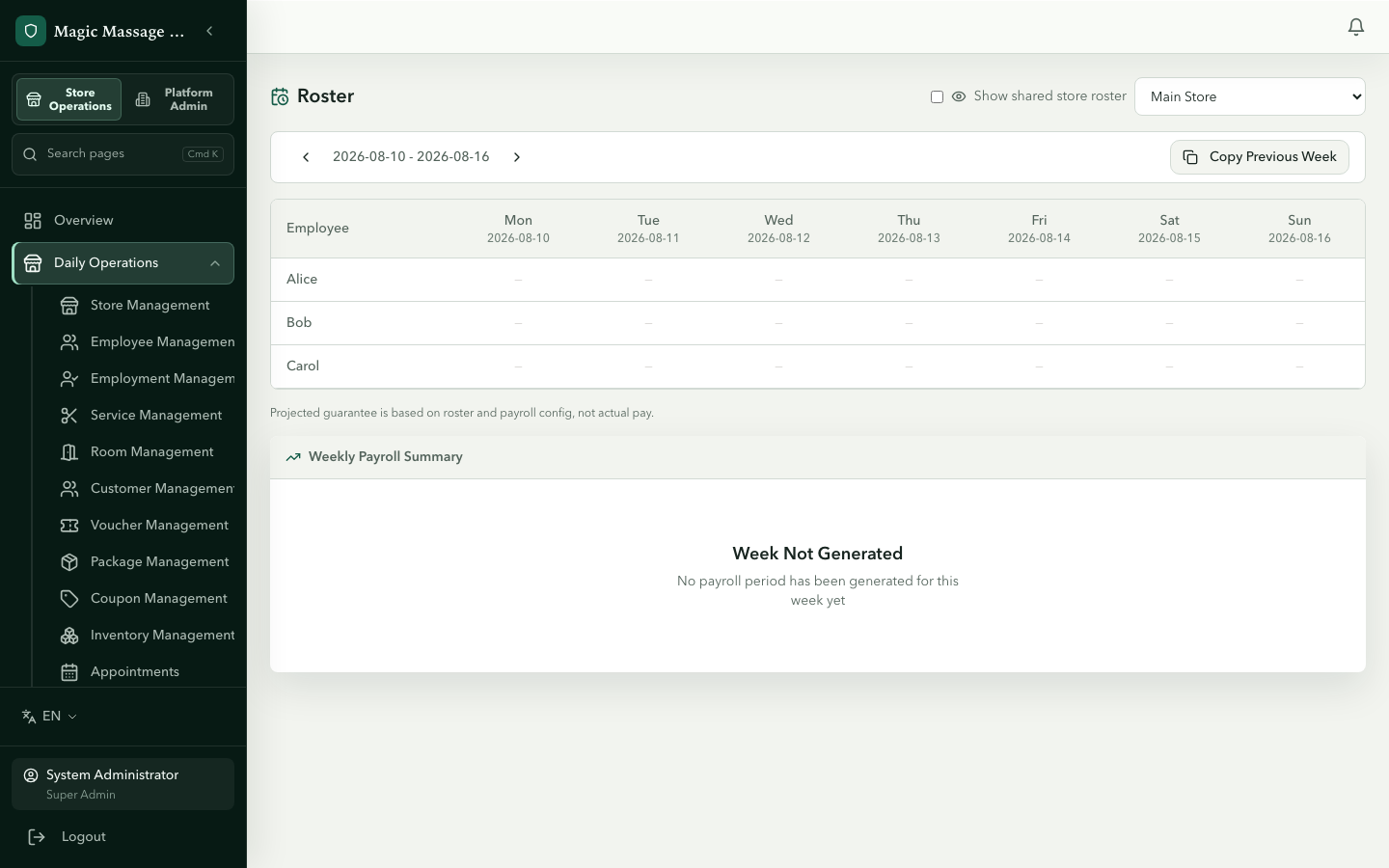
The weekly roster
Admin → Roster
The roster is a weekly grid: employees on rows, days on columns. Each cell shows the shift start/end time (or empty if not rostered).
Viewing
- Store filter: select which store's roster to view.
- Week navigation: prev/next arrows move one week; date picker jumps to any week.
- Shared store toggle: if sharing policies allow, show employees rostered at partner stores (greyed to distinguish from local).
Creating a roster entry
- Click an empty cell (employee × day).
- Enter shift start and shift end times.
- Save. The entry appears immediately.
Editing / deleting
- Click an existing entry → modify times or delete.
- Changes save inline — no separate "submit" step.
Time-off requests and the Seen indicator
The roster page also lists pending Time-off requests from staff; approving, declining or cancelling them needs roster.time_off.manage. Approved time off feeds the Coverage Planner below. Each roster entry additionally shows a Seen by staff indicator — it only records that the employee opened the roster; it does not mean they accepted the shift or confirmed availability.
Copy previous week
For repeating schedules:
- Open the week you want to fill.
- Click Copy Previous Week.
- Every entry from the immediately preceding week is copied in.
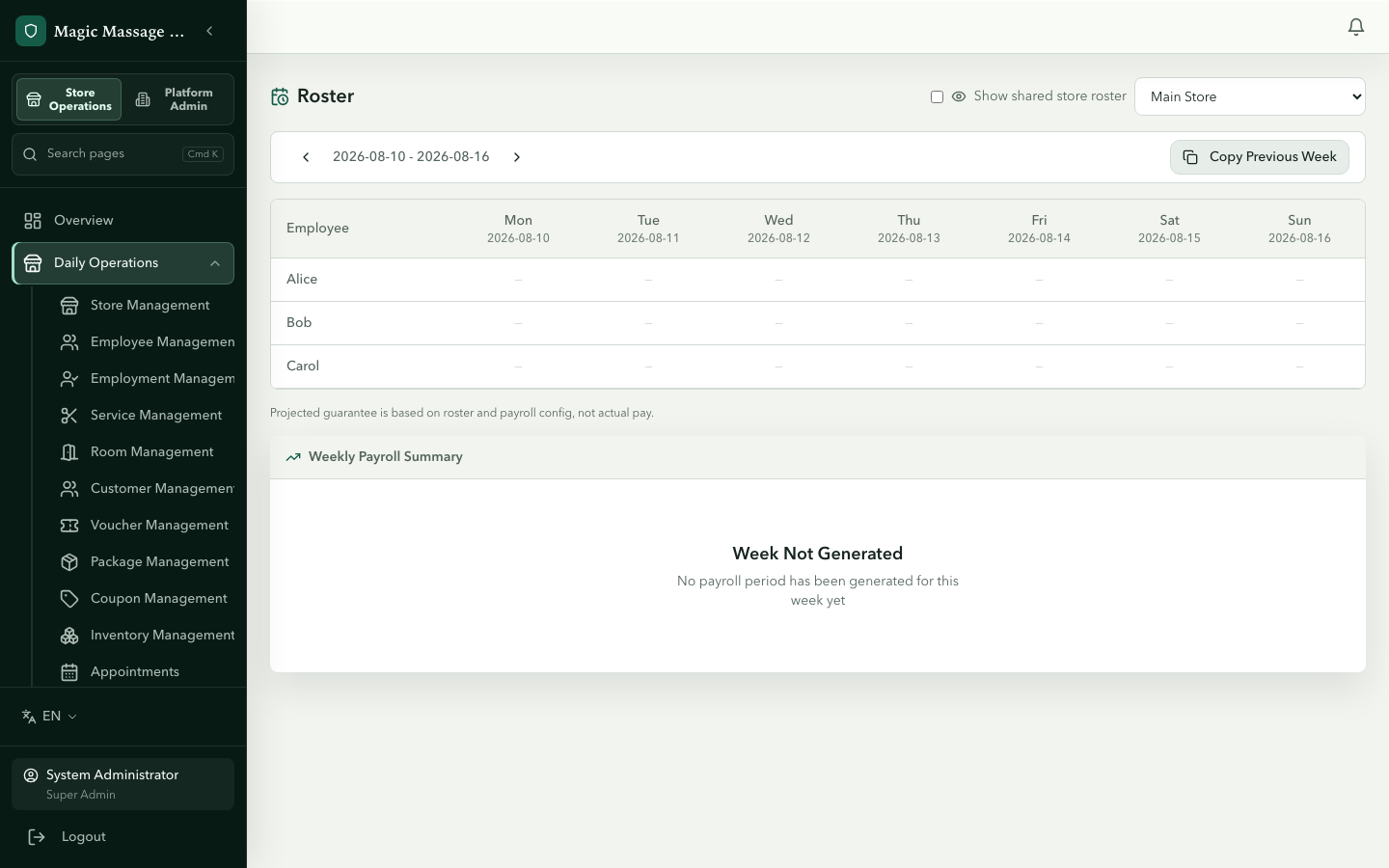
There is no week picker — the button always copies the week directly before the one on screen, and it replaces everything already rostered in the current week. Use it on an empty week, not to merge into one you have already started.
Coverage Planner and Yield evidence
The Coverage Planner uses existing appointments, service capabilities, approved time off, stations, cross-store rosters and denied-demand observations for one exact Store. Choose a fixed 7-day or 14-day horizon to review:
- appointment demand in the returned window;
- denied-demand signals already recorded for that Store;
- days with a coverage gap; and
- the number of server-generated roster suggestions.
These are planning signals, not a revenue forecast or a claim that a particular employee will be available. Changing Store or horizon clears the previous result; late responses cannot replace the current Store's plan.
The planner does not edit the roster automatically. A manager with
roster.schedule.manage may apply one suggestion at a time, and the server then
rechecks the Store, employee, capability, time off, stations and current roster under
lock. Read-only users can inspect the evidence but cannot apply a suggestion.
Use the Yield track in Pilot acceptance to calibrate these counts and suggestions against representative Store operations before wider rollout.
The planner does not interpret Awards, overtime, payroll, qualifications or clinical suitability. Those remain separate Owner and external compliance decisions.
Cross-store appointment list
Admin → Appointments
A paginated list of all appointments across your accessible stores. Features:
- A KPI row and trend chart above the list summarise the selected range.
- Filter by store, status, date range.
- View appointment details (customer, services, therapist, room, time).
- Treatment station assignment — reassign the station of an appointment without leaving the page.
- Review panels, shown once a single store is selected: Confirmed website no-shows (
booking.no_show_review.read), the Manual reschedule waitlist with a mark-as-handled action (booking.waitlist.read/booking.waitlist.manage), and Upcoming therapist coverage. - Cancel or mark no-show directly from Admin (for appointments that won't be actioned from POS).
- Edit the date, time, therapist, room and notes of an upcoming appointment. The edit dialog has an optional Reason for the change: when the date or time actually moves, the customer receives a reschedule email in their preferred language that includes this reason and a link to book again. Cancelling from Admin sends a cancellation email with the required cancellation reason. Customers without an email address are not contacted.
Creating and checking-in appointments is done on POS, not Admin. Admin is for oversight and cross-store visibility.
Clock-in records (clock-in/out history)
Admin → Clock-in records
A read-only log of clock-in and clock-out events. Pick one store and one date — there is no all-stores view and no date range. Columns:
- Employee
- Clock in / Clock out
- Status (Active / Ended)
- Source store
Duration and the overnight auto-close marker are not shown.
Useful for: payroll verification, attendance disputes, identifying forgotten clock-outs.
iCal subscription
From Admin → Appointments, click Subscribe Calendar to get a per-store iCal feed URL. There is no per-therapist feed. The URL carries a secret token; Rotate URL invalidates it if it leaks.
Subscribe to the feed in Google Calendar, Apple Calendar or Outlook to see the store's appointments outside the system.
Tips
- Roster before the week starts — therapists see their own roster on POS; last-minute changes cause confusion.
- Roster drives online bookings — if your store uses online booking, therapists without a roster entry for a future date will not appear as available to customers. No roster = no online slots. This is strict by design — it prevents overbooking stores that don't track schedules.
- Copy Previous Week saves repetition — most stores have a regular pattern; copy into the empty week, then adjust exceptions.
- Shared employees — if a Twin or sharing policy is active, partner-store employees appear on your roster in a different style. You can schedule them if you have the
schedule_shared_employeecapability.