Staff & employment
Manage your team: profiles, employment relationships across stores, PIN access and commission configuration.
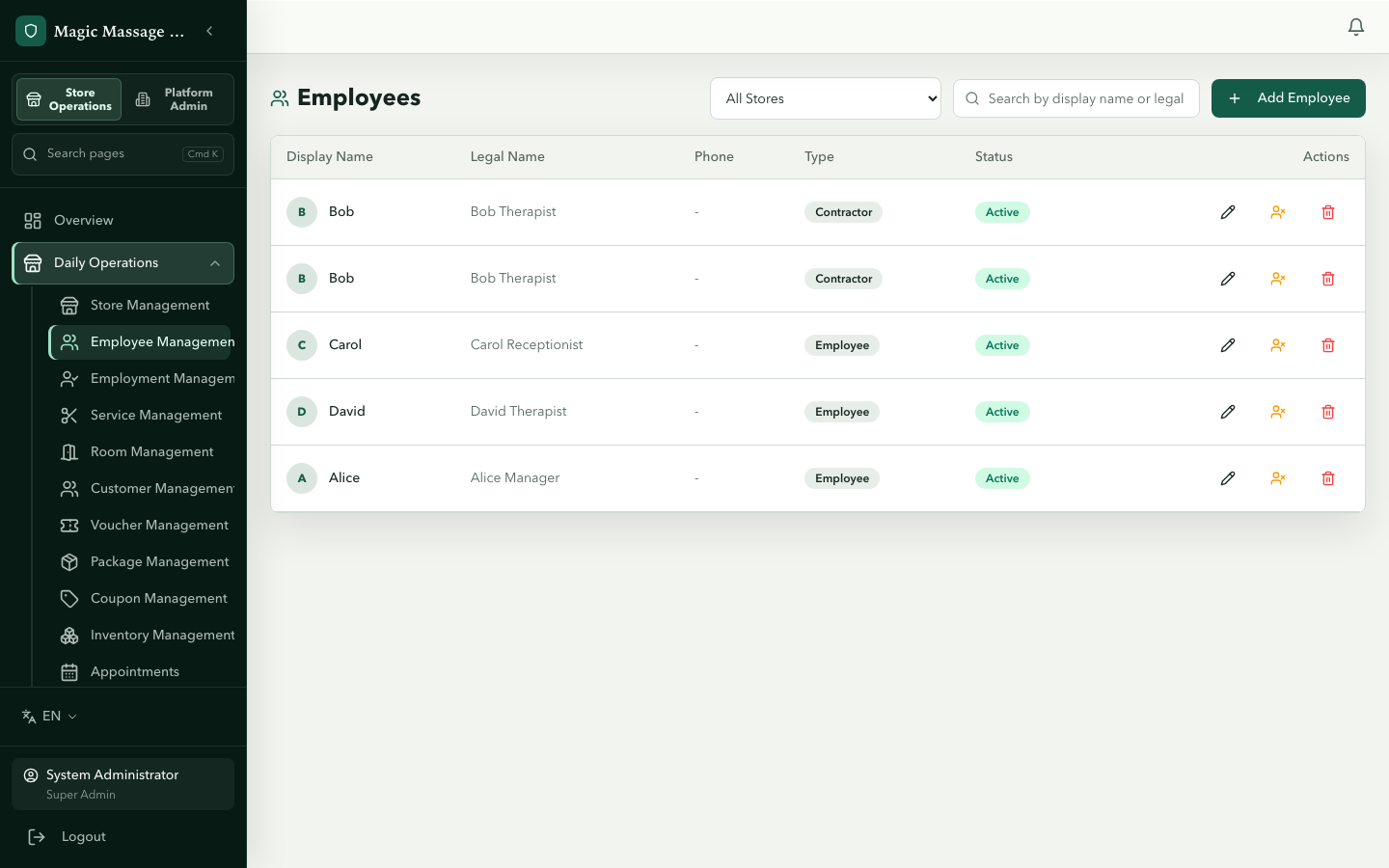
Staff profiles
Admin → Employee Management
Each employee record holds:
| Section | Fields |
|---|---|
| Identity | Given name(s), Family name, Legal name order, Preferred name, email, phone, photo URL, preferred locale. Legal name and display name are derived by the system (see below) |
| Role (initial employment) | Receptionist / Therapist / Manager / Owner — you can only assign roles below your own |
| Sensitive fields (masked by default) | Visa type & expiry, TFN, Super fund, ABN. The Provider Number is not edited here — it is set on the Providers / Provider Numbers screens |
| Status | Active / Inactive |
Sensitive fields (TFN, Super, ABN) are masked in the form; use Show / Hide to reveal them while editing. TFN is encrypted at rest and returned only to administrators with employee-write permission. MMOS deliberately does not apply a TFN checksum. ABN accepts separators but must pass the 11-digit mod-89 format check; that does not prove the ABN is registered.
Creating an employee
- Employee Management → Create.
- Fill required fields (at least a Given name or a Family name, and the role).
- Optionally add sensitive fields, photo, locale.
- Save. The employee exists but cannot log into POS until they have a PIN and an employment relationship with a store.
Employee type, visa type, role, employment status and commission type are controlled lists. Phone fields currently accept Australian numbers only and save them in +61… form. Provider Number format validation does not confirm the person's profession or authority to practise at a location.
Name fields
- Given name(s) / Family name — enter exactly as on the identity document used for payroll / STP. Either one may be empty (single-name people are fine); capitalisation, hyphens and apostrophes are kept as typed. When both are filled, choose the Legal name order (given first, e.g. Ann Lee, or family first, e.g. Zhang Wei).
- Preferred name — how colleagues and customers address the person. Optional.
- The form previews both derived names as you type. Legal name (payroll, tax, audit, HR reminders) joins the two legal parts in the chosen order. Display name (POS, roster, customers, Staff Portal, emails) is the preferred name (or the given name) plus the initial of the family name (Ann L.); a single-name person is shown as that single name. Neither derived name can be typed directly.
- Only administrators with employee-write permission see the legal name and its parts in the list and detail views; everyone else sees the display name.
Staff Portal access
An active employee with a work email can request a one-time Staff Portal sign-in link. Add an active employment for every Store and role the employee should see. Staff Portal is read-only: it shows the employee's roster, past clock records, provisional pay and Store roles, while clock-in/out and other operational work remain on POS.
Share the Staff Portal quick start with new employees. If a sign-in email does not arrive, confirm the employee is active and the work email is correct, then have them request a fresh link; every link works once and expires after 15 minutes.
Editing / deactivating
- Edit: change any field; saved immediately.
- Deactivate: sets
is_active = false. The person disappears from POS on-duty lists but remains in historical records. - Batch delete is available through the API only; deactivate employees one at a time in Admin.
- Soft delete: removes from all lists; can be restored later by an admin.
POS badges
From the employee row you can Issue POS badge, Replace POS badge or Revoke POS badge. The QR code is shown once, when issued — print it or pair it with the team member before closing the window; if it is lost or exposed, replace the badge. Scanning a badge only identifies the team member: high-risk POS actions still require their personal PIN.
Payout destination
Manage payout destination stores one current bank account (BSB and account number) or personal PayID for future manual wage payment. The details are encrypted and only a masked value is shown afterwards. MMOS does not verify ownership, resolve the PayID or move any money. Requires the employees.payout_destination.manage permission.
Employment relationships
Admin → Employment Management (or via the employee detail page)
An employment binds one employee to one store with a specific role. One person can have multiple employments (multi-store).
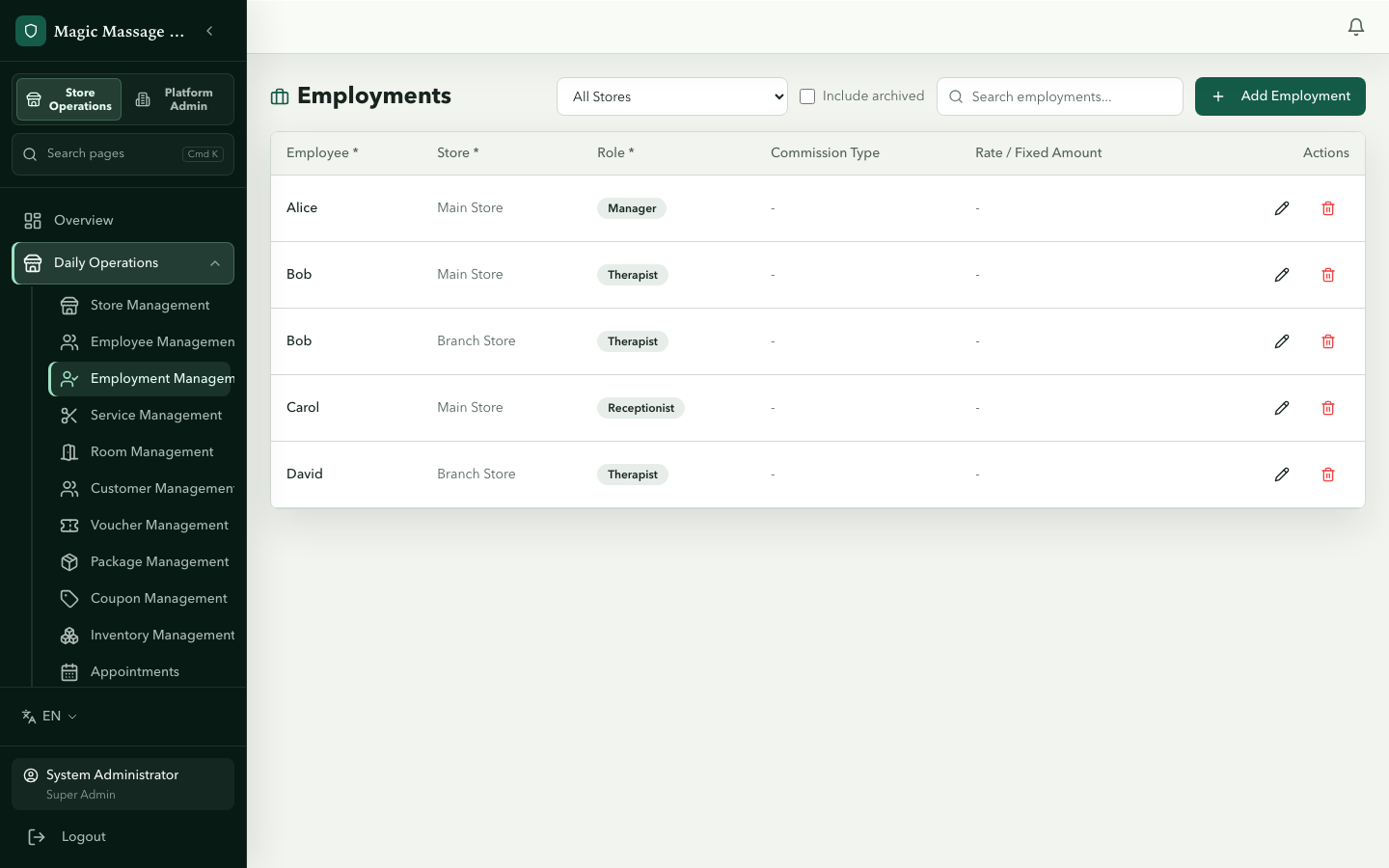
| Field | Purpose |
|---|---|
| Store | Which store this employment is for |
| Role | receptionist / therapist / manager / owner (you can only assign roles below your own) |
| Commission type | percentage / fixed_step / material_deduct (overrides service-level if store strategy = employee) |
| Commission rate | Percentage (e.g. 50.0000 = 50%) |
| Commission fixed | Fixed dollar amount per service |
| Material cost | Deducted from commission per service |
| Status | active / inactive |
| Primary store | Marks this employment as the employee's home store — the one that calculates their payroll (see Payroll) |
| Include in payroll calculations | Whether this employment produces a payroll entry (off by default for owners) |
| Bookable by customers | Whether the employee appears as a bookable therapist for online/Kiosk bookings |
| Can clock in | Whether the employee may clock in on POS at this store |
| Can be rostered | Whether the employee appears in this store's roster |
| Require clock-in for POS | When on, the employee must be clocked in before operating POS at this store |
Why employment matters
- POS shift: an employee can only clock in at a store where they have an active employment.
- Service assignment: only employed + on-duty staff appear in the therapist picker.
- Commission: calculated using the employment's commission fields (unless overridden by service-level config based on store strategy).
- Tax attributes: only an administrator with payroll configuration access for this employment's Store can view or change residency, tax-free threshold, Medicare exemption or the "TFN provided" declaration. A TFN entered on the employee profile is stored encrypted and remains limited to employee-write access.
PIN management
Reset a PIN
- Employee Management → select employee → Reset PIN.
- Enter a new 4–6 digit PIN. There is no auto-generate option.
- The employee uses this new PIN immediately at POS.
Unlock a locked PIN
If an employee enters the wrong PIN 3 times, it locks for 15 minutes. Two ways to resolve:
- Wait 15 minutes — the lock expires automatically.
- Reset PIN — an administrator resets it in Admin (bypasses the lock).
PIN resets are audited. The audit log shows who reset whose PIN and when — this is one reason managers should never share their own PIN.
Connecting employment to POS shifts
The flow:
- Admin creates employee + employment for a store.
- Employee clocks in on POS using their PIN → shift starts.
- Employee appears on the on-duty board → can be assigned services.
- At end of day, employee clocks out.
If an employee has employments at multiple stores, they can only clock in at the store whose POS device they're using — the device token determines the store.
Tips
- Commission disputes: check the employment's commission fields AND the service's commission fields. The store's strategy setting (
employee/service/higher) determines which one wins. - New hire checklist: Create employee → Create employment for the store → Set PIN → Employee clocks in → Ready for work.
- Visa expiry tracking: fill in visa type and expiry date; the system sends notifications at 30/7/1 days before expiry.