Cash drawer
The drawer is the Business Period's physical cash story: what you started with, what left as expenses, and what should be in the tin at period close.
Is the current drawer open?
The Cash Drawer page shows the current Business Period's status at the top. No drawer open yet → you'll be prompted to open one before taking cash payments.
You cannot open the drawer until at least one person has clocked in — with nobody on shift, the page sends you to Shifts first.
Open the drawer
- Count the physical float in the tin.
- Cash Drawer → Open Cash Drawer, enter the counted opening balance.
- PIN to confirm. The drawer is now open for the day.
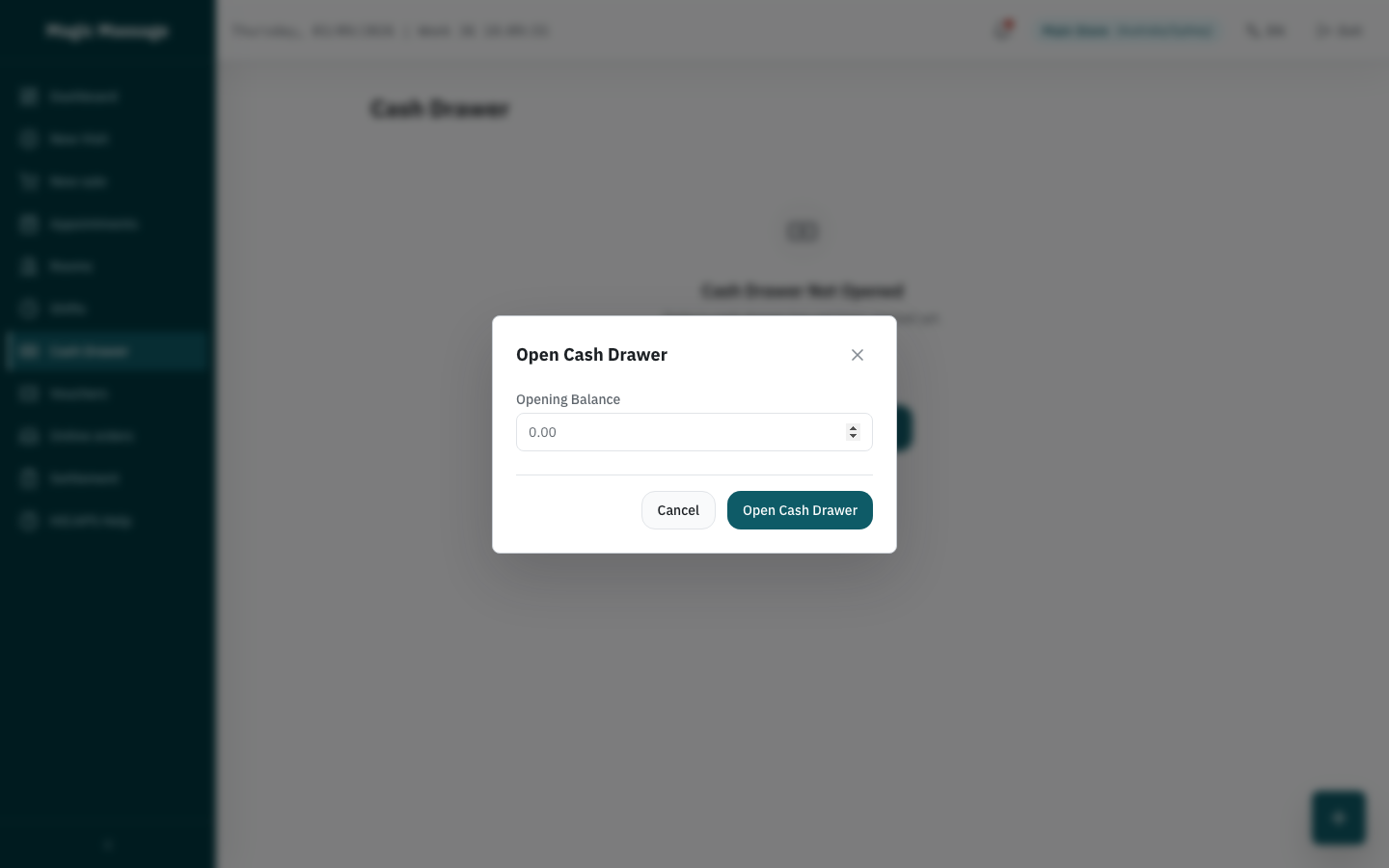
Enter what you actually counted, not what should be there. If yesterday left the float short, opening with the real number is what makes the discrepancy visible instead of burying it.
Record a cash expense
Paying the water bill or buying towels from the tin? Record it immediately:
- Cash Drawer → Add Expense.
- Amount + short reason (e.g.
laundry pickup), PIN to confirm. - The expense appears in the drawer's expense list and is subtracted from expected cash at settlement.
Variance — when the count doesn't match
At Final Settlement, the system compares expected cash (opening float + cash payments − expenses) with counted cash. A mismatch puts the drawer into VARIANCE state:
- Final Settlement can still complete — the variance is recorded, not hidden.
- A manager reviews the variance in Admin (Reports & Finance → Approval Center → Cash Drawer Variance) with a note, and either approves it (the drawer becomes APPROVED) or rejects it (the drawer goes to INVESTIGATION and the difference stays on record).
- Repeated small variances are a coaching signal; a large one is an incident. Either way the trail is intact.
Closing
You don't close the drawer directly — Final Settlement closes the current drawer as it closes the Business Period. See Business Period settlement.