Payroll (if enabled for your store)
Track commissions, guarantees and period totals for your team, and — once your accountant has entered the tables — PAYG withholding and Super guarantee amounts per entry. It is not an STP/ATO reporting or bank payment system.
What payroll covers
| It does | It does NOT |
|---|---|
| Commission calculation per service | STP reporting to the ATO |
| Guarantee (minimum pay) detection | Award interpretation |
| PAYG withholding + Super guarantee calculation from tables you enter | Bank payments / bank file generation |
| Period create / recalculate / close / approve / mark paid | Ship or pre-load any tax table, rate or threshold |
| Per-employee breakdown with daily detail | Validate your tables against the ATO |
PAYG withholding & Super guarantee (V1)
Admin → Payroll → PAYG & Super (Tenant/Super admins only)
Nothing is pre-loaded. Your Owner or accountant enters versioned configuration; every version has an effective date and a change reason, and versions can never be edited or deleted — append a new one instead.
- PAYG withholding schedule: bracket rows in the coefficient form published by the ATO — period type (weekly / fortnightly / monthly), residency, tax-free threshold and Medicare levy exemption flags, a
[from, up to)earnings range and coefficientsa,b(withholding = a × earnings − b). Per version you also state the earnings input rule (ignore cents / cents added), the rounding rule, whether fixed deductions reduce taxable earnings, and the flat rate for employees who have not provided a TFN (leave empty to refuse). - Super guarantee: rate, maximum contribution base per quarter, which pay components count as ordinary time earnings (commission, guarantee top-up, revenue bonus) and the rounding rule.
- Employee tax attributes live on the employment (Admin → Employment Management → edit): residency for tax purposes, tax-free threshold claimed, Medicare levy exemption, TFN provided. The TFN itself is never stored.
When a period is calculated, each entry records gross, PAYG withheld, net pay, SG amount and the exact configuration versions used. SG caps include every other calculated period for that employee in the same calendar quarter, even when two periods have the same end date. If anything is missing — an attribute not declared, no version in effect for the period end date, no matching bracket — the entry shows a red tax error instead of a zero, and the period cannot be approved until it is fixed and recalculated. If an open entry's net amount is manually overridden, its earlier PAYG/Super result is cleared and must be recalculated. Approved entries keep their versions forever; later configuration versions never rewrite them.
Fail-closed by design: the system will refuse rather than guess a tax rule. Have your accountant check the tables you enter; MMOS does not validate them against the ATO.
How commission works
Commission is calculated per completed service based on the store's strategy:
| Strategy | Rule |
|---|---|
employee | Employee-level commission rate (from employment) wins |
service | Service-level commission rate wins |
higher | Whichever rate produces a higher dollar amount wins |
The strategy is set in Admin → Store Management → edit the store → Commission Strategy.
Commission recalculates automatically (via Celery task) whenever a service is completed, adjusted or voided.
Payroll configuration
Admin → Payroll → Configs
Per-employee payroll rules. Five calculation types:
| Type | What it does | Example |
|---|---|---|
| commission | Standard per-service commission | 50% of service revenue |
| tiered_guarantee | Minimum pay based on revenue tiers | If revenue < $2000 → guarantee $800/week |
| days_guarantee | Minimum pay based on days worked | 5 days worked → minimum $1000 |
| revenue_bonus | Bonus when revenue exceeds threshold | Revenue > $5000 → bonus 5% of excess |
| deduction | Fixed deduction per period | Uniform rental: -$20/period |
Rules have priority — they are evaluated in order during calculation.
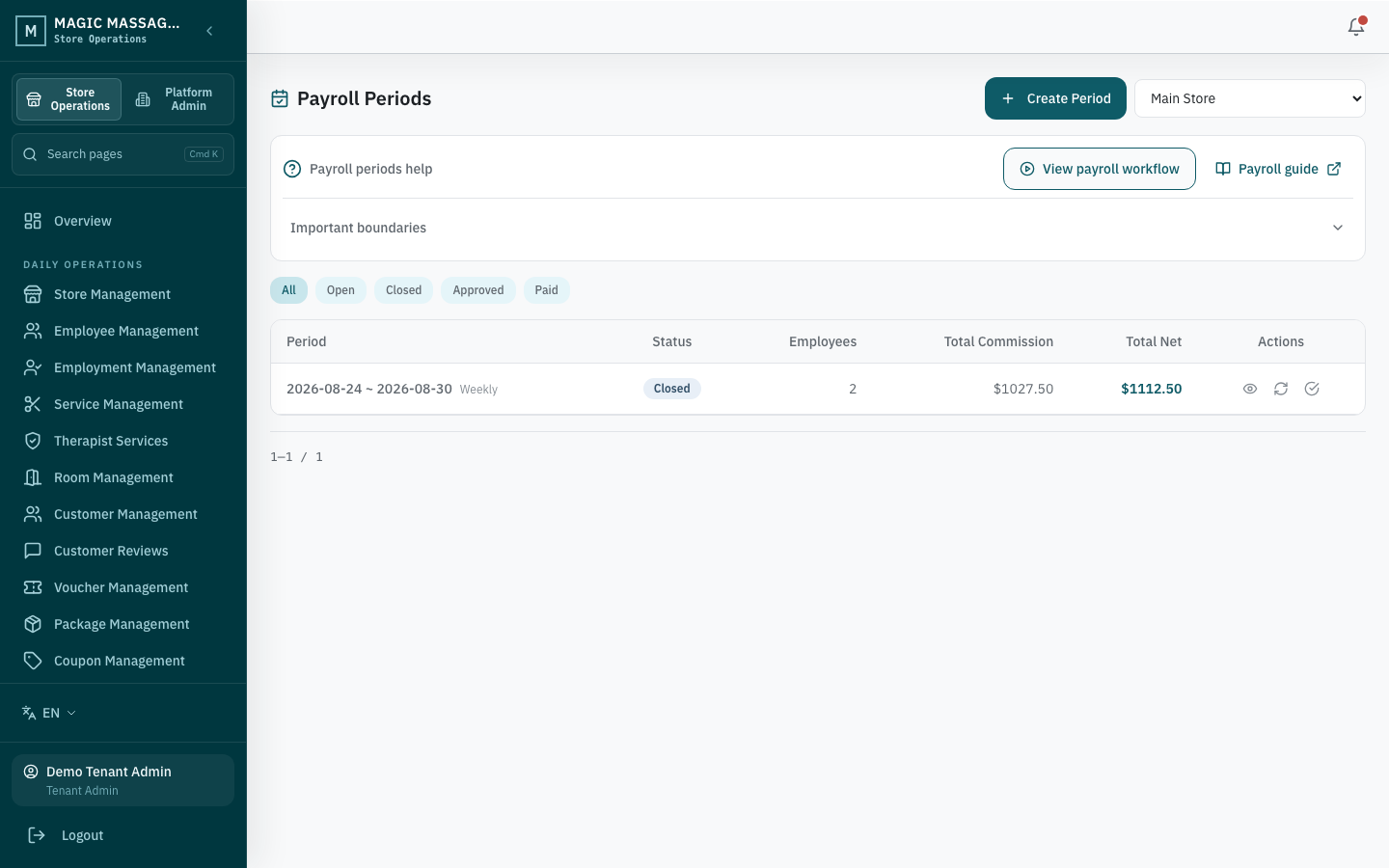
Payroll periods
Admin → Payroll → Periods
A period is a date range for which pay is calculated. Periods you create in Admin are always weekly. Daily, fortnightly and monthly periods are only produced by the automatic period task, which follows each payroll config's Period setting.
Creating a period
- Periods → Create (or the system creates one automatically via Celery task if enabled).
- Select the store and a Monday week start; the seven-day end date is derived. Non-Monday starts are refused.
- The period starts in
openstatus. If the store is in a Twin, the same week is created for every Twin member in the same step.
Calculating
- Open the period → Recalculate All (entries are created with the period; recalculation refreshes them — or wait for automatic recalculation after service completion).
- The engine aggregates for each employee:
- Total commission from completed services
- Days worked (from shifts)
- Revenue generated (from payments)
- Guarantee thresholds and bonuses
- Result: a PayrollEntry per employee showing the breakdown.
Reviewing entries
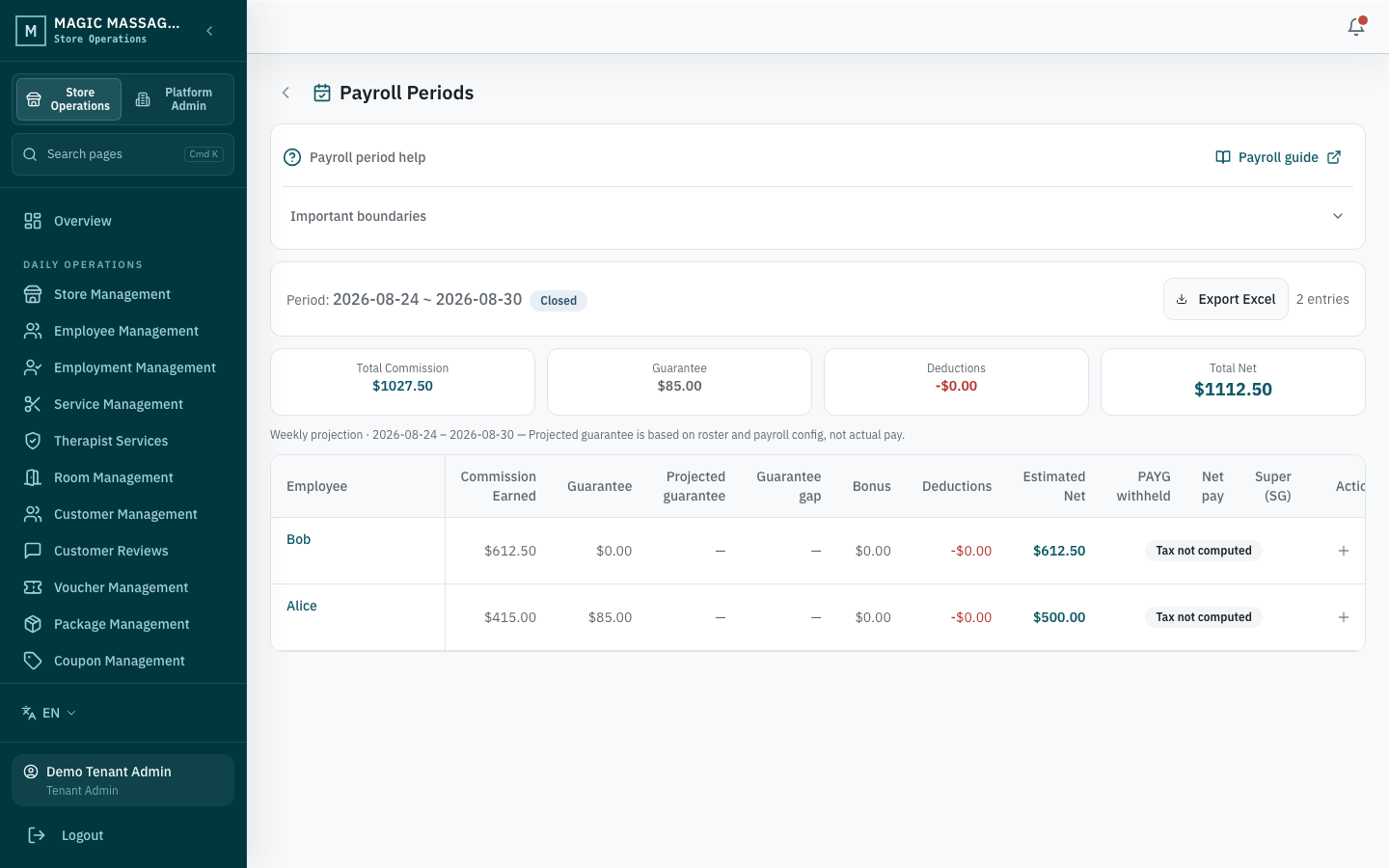
Each entry shows:
| Line | Source |
|---|---|
| Commission total | Sum of per-service commissions |
| Guarantee amount | If guarantee > commission, the difference tops up |
| Revenue bonus | If threshold met |
| Deductions | Fixed per-period deductions |
| Net pay | Final amount |
| Daily breakdown | Which store, how many services, how much — per day |
| Store breakdown | Commission and days per contributing store (multi-store employees, see below) |
Approving
- Manager reviews all entries — every entry must show computed PAYG/Super (no red tax error).
- Close Period → status changes to
closed(recalculation stops here). - Approve Period → status changes to
approved. - Recalculation stops as soon as the period is closed — the API refuses it under a row lock, and the database itself rejects edits to the entries of a period that is no longer open (only the mark-paid confirmation columns may change).
Marking as paid
After transferring money to employees:
- Mark paid → status changes to
paid. - This is a record-keeping step — the system doesn't transfer money.
Period lifecycle
open → closed → approved → paid
- Open: services landing, commission accumulating; entries can be recalculated.
- Closed: the week's records are complete; recalculation is no longer possible.
- Approved: manager signed off.
- Paid: money transferred externally; final.
Adjustments on closed periods and carry-over
Once a period is closed, approved or paid, its entries are frozen. A late bonus, deduction or correction is recorded as an adjustment on the entry (append-only; a wrong adjustment is reversed with a reason, never deleted).
If the money should be paid with the next pay run instead, tick Carry over to the next open period on the adjustment form:
- The adjustment is recorded on the closed period's entry, but its amount is realised in the employee's next open period of the same store, whose entry is recalculated immediately (gross, net, PAYG withholding and Super, using the configured versions). The closed period's figures do not change.
- The entry shows Carried into
start–endso you can see where the amount landed. - If that store has no later open period yet, the carry-over is refused — create the next period first.
- Reversing a carried-over adjustment works while the target period is still open; once the target is closed, record a new adjustment on the target period instead.
Bank transfers and STP reporting are still outside the system.
Guarantee logic
Two types:
- Tiered guarantee (managers): if total revenue for the period is below a tier threshold, the employee gets a guaranteed minimum regardless of commission earned.
- Days guarantee (therapists): if the employee worked N or more days, they get at least $X — commission tops up above the guarantee.
The final pay is always: max(commission, guarantee) + bonuses − deductions.
Multi-store employees: home store, Twin and secondment
If an employee works at more than one store — two Twin stores in the same mall, or a secondment to another store in your region — their pay is calculated once, at their home store, and the other stores' work is folded in as a per-store breakdown.
- Home store = the employment marked Primary (Admin → Employment Management). An employee with a single active employment needs nothing else. An employee with several employments must have exactly one marked primary; employments created by a staff loan can never be primary. Without a primary, the home store refuses to calculate and names the employee.
- What folds in: a store contributes its commission, revenue and shift days to the employee's home-store entry when it grants the home store the
payroll.consolidatesharing capability. Twin grants it automatically in both directions; for a secondment to a non-Twin store, add a payroll policy from that store to the home store with the Collaborate preset (or tick Consolidate into the employee's home-store payroll). - One person, one guarantee: days and tiered guarantees use the combined days / revenue. The company guarantees the person, not each store.
- Revenue bonus scope: each
revenue_bonusrule has a Revenue scope — This store only (two managers, one per store) or All consolidated stores (one manager running both Twin stores). - Deductions follow the home store's configuration. PAYG is withheld once on the combined gross; Super quarter caps are unchanged.
- No double counting: a store whose work is consolidated elsewhere does not create an entry for that employee; the period summary reports them as consolidated elsewhere.
Twin periods move together. Creating a week at one Twin store creates the same week at every Twin member; close, approve and mark paid apply to the whole group and are refused if a member's week is in a different status. Secondment (non-Twin) stores keep their own period lifecycle.
Seeing the other side. On a store whose staff are consolidated elsewhere, the period page shows a read-only Consolidated at another store table. What you see depends on the payroll sharing the home store grants your store: nothing granted → only your store's contribution (commission, days); View aggregated summary → plus net; View line-item details → the full per-store breakdown. Excel exports include a Store Breakdown column, and Staff Portal shows each employee their per-store split.
Tips
- Check before approving — review per-day details. A therapist who "earned nothing on Tuesday" may have been on shift but unassigned (scheduling issue, not payroll issue).
- Commission disputes — always check: which strategy is the store using? What's the employment commission rate? What's the service commission rate? The engine resolves based on the strategy.
- This is not your tax payroll — use this system's output as input to your actual payroll provider. The period total is your "commission owed" figure; your accountant handles the rest.