Multi-store & sharing (if enabled)
Manage store groups, directed sharing policies and joint operations (Twin) for multi-location businesses.
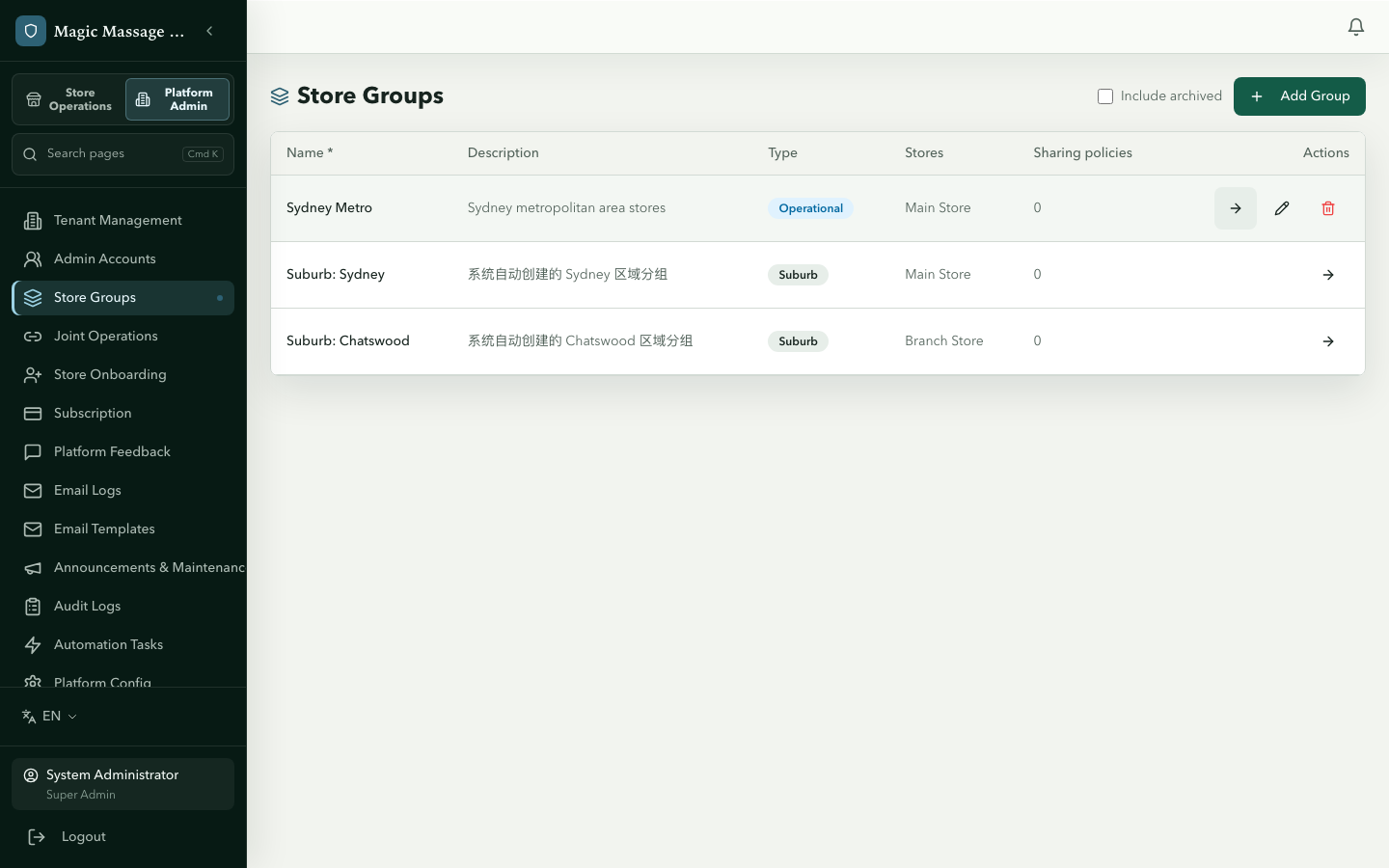
Store groups
Admin → Store Groups
A store group is a named collection of stores. Two types:
| Type | Purpose | Created by |
|---|---|---|
| Operational | Stores that work together (share staff, joint ops) | Super admin / Tenant admin |
| Suburb | Geographic grouping for analytics | System (auto-generated) |
Operational groups are the foundation for sharing policies and Twin.
Creating a group
- Store Groups → Create.
- Name the group. Groups you create are operational by default — the type is shown as a badge in the list and is not chosen in the form.
- Add stores (from your accessible stores).
- Save.
Sharing policies — directed authorisation
Admin → Store Groups → select group → Sharing Policies tab
A sharing policy says: "Store A grants Store B access to resource X with capabilities Y."
Source store ──► Target store
(provides)       (receives access)
Key principles
- Explicit: nothing is shared by default. Every cross-store action requires a policy.
- Directed: A→B is independent of B→A. Bidirectional sharing requires two policies.
- Per-resource: each policy covers one resource type (employees, roster, POS shared queue, products (inventory catalogue), visits, customers, appointments, vouchers, packages, coupons, payroll, settlement).
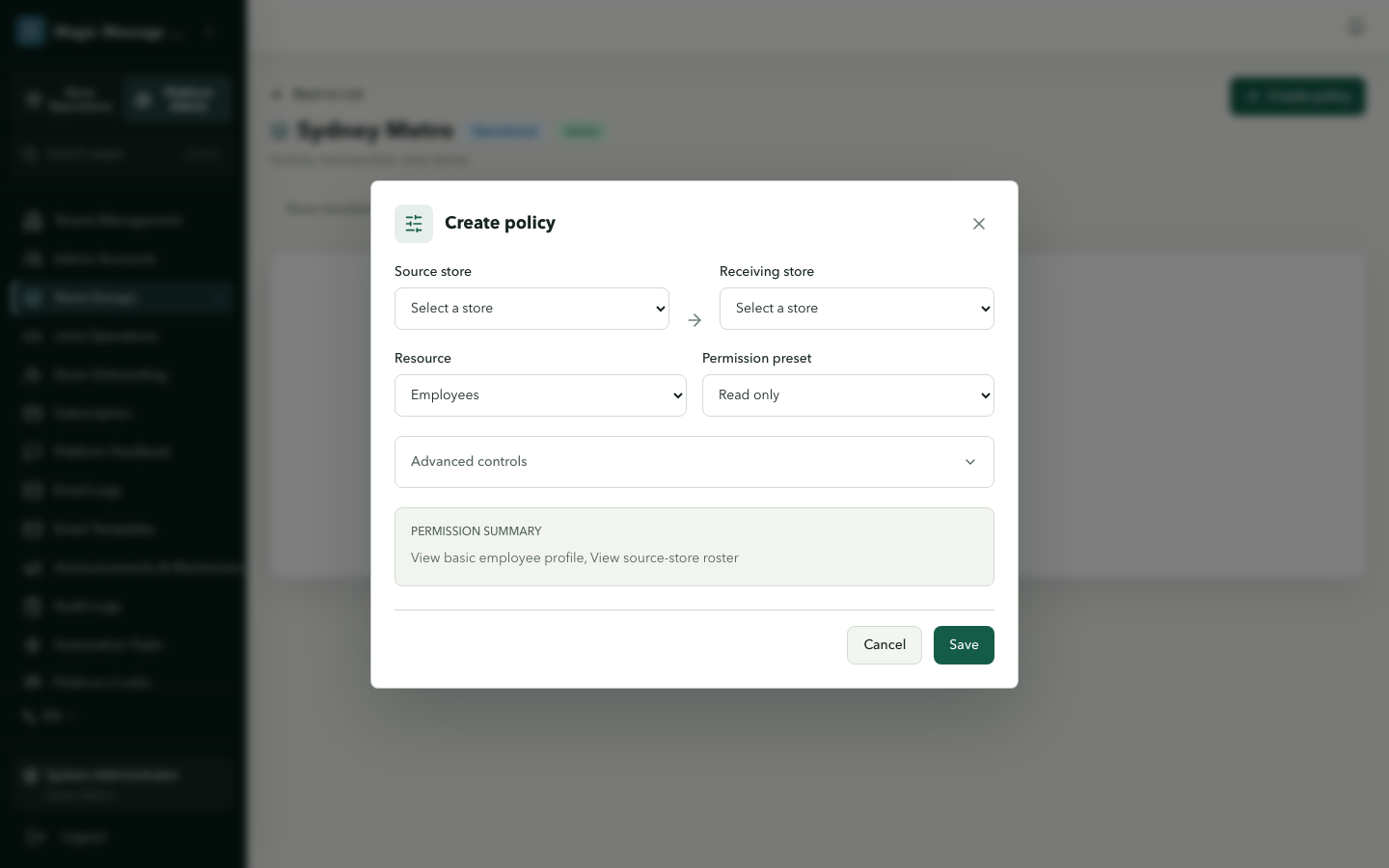
Creating a policy
- Open an operational store group → Sharing Policies → Create.
- Select source store (who provides) and target store (who receives).
- Select resource type.
- Choose a preset (none / read_only / use / collaborate) or set custom capabilities.
- For asset types (voucher/package/coupon): choose the settlement semantics —
- Shared pool (default): your own-chain stores redeem each other's vouchers with no inter-store payment.
- Require settlement between stores: enter the percentage the redeeming store keeps (e.g. 80%); the issuing store's share (20%) is derived automatically. A $100 redemption at the partner store then creates an $80 inter-store obligation.
- Save.
Inter-store settlements & adjustments
Cross-store redemptions under a percentage-split policy are gathered into monthly inter-store settlements using the rate frozen at redemption time — later policy changes never rewrite past economics. Once either side confirms a settlement, its line set is frozen; redemptions that surface after the freeze (or from a missed month) are collected into a separate adjustment settlement attributed to the original month, so a confirmed $150 obligation stays $150 and the late $100 redemption appears as its own +$80 adjustment.
Presets vs custom
| Preset | Typical use |
|---|---|
| None | Deny all (explicitly block) |
| Read only | See data but can't act on it |
| Use | Can use the resource (assign employee, redeem voucher) |
| Collaborate | Full operational access (edit, schedule, manage) |
| Custom | Pick individual capabilities |
Deactivating / deleting a policy
- Deactivate: policy remains visible but denies new actions. Historical records unaffected.
- Delete (soft): policy hidden from active list, restorable.
Joint Operations (Twin)
Admin → Joint Operations
Twin is the "easy button" for stores that operate as one — it auto-generates all the sharing policies you'd otherwise configure manually.
What Twin does
When activated, Twin creates bidirectional policies between all member stores for:
- POS shared queue (see/assign each other's on-duty staff)
- Roster (view/schedule/clock-in shared employees)
- Visits (view partner store's visits)
- Customers (view/create/edit across stores)
- Appointments (view/manage across stores)
- Payroll (view aggregated data and consolidate each employee's pay at their home store — see Payroll) & settlement summaries
- Vouchers, packages, coupons (cross-redeem as a shared pool — no inter-store payment)
Twin does not create employee or product-catalogue policies — a staff loan still needs an explicit employee policy with Assign employee to receiving store.
Creating a Twin
- Joint Operations → Create.
- Select an operational store group (must have ≥ 2 stores).
- Name it (e.g. "Level 1 Joint Floor").
- Review and adjust the default package (which capabilities to enable).
- Choose whether all stores must confirm before activation.
- Create.
Lifecycle
draft → (members confirm) → active → inactive
- Draft: can edit members and default package.
- Active: policies are live; editing members/defaults requires deactivation first.
- Inactive: all managed policies deactivated; can be re-activated.
Member confirmation
Each store in the Twin must confirm participation (unless require_all_confirmed is disabled). Regional managers can confirm stores they manage.
Cross-store boundaries
Staff loans (employee transfer)
With the right sharing policy (employee.assign_to_local_store):
- A therapist from Store A can be assigned to work at Store B.
- Their shift at Store B carries a
sharing_policy_idlinking back to the authorising policy. - Commission is recorded against the store where the service was performed. Pay is calculated at the employee's home store (primary employment) when Store B grants it the
payroll.consolidatecapability — Twin does this automatically; otherwise Store B calculates its own share. A loaned employment can never be marked primary.
Inter-store settlement
When a shared resource generates revenue at a partner store (e.g. a voucher sold at A is redeemed at B), a percentage-split policy generates an inter-store settlement line — shared-pool policies (the Twin default for asset types) create no inter-store obligation.
Inter-store settlements are generated monthly by a Celery task. Use Admin → Inter-store Settlements to:
- filter the queue by an authorised Store and status, then open the frozen source lines;
- select the exact Store side you represent before confirming or disputing;
- enter a reason to dispute, or resolve a dispute and restart both confirmations; and
- as a super admin or tenant admin, record the final external transfer reference after both sides are confirmed by different administrators.
The server rechecks both Store scopes, actors, status, line totals and balanced ledger entries. The page cannot edit or delete a settlement or its frozen lines. Shared-pool policies do not appear here because they create no inter-store obligation.
Tips
- Start with Twin — if your stores are under one owner and operate as one unit, Twin gets you 90% of the way with zero manual policy configuration.
- Manual policies for exceptions — use individual policies for specific cases (e.g. share inventory catalog with a partner store but not the queue).
- Review policies periodically — deactivate policies for partnerships that ended. Active policies = active trust.
- Shared pool within Twin — this is by design. Same-owner stores don't need to "pay each other" for cross-store redemptions.