Store configuration
Everything about your store's identity, services, rooms and operational settings lives here. Changes take effect on POS immediately (lists refresh within minutes).
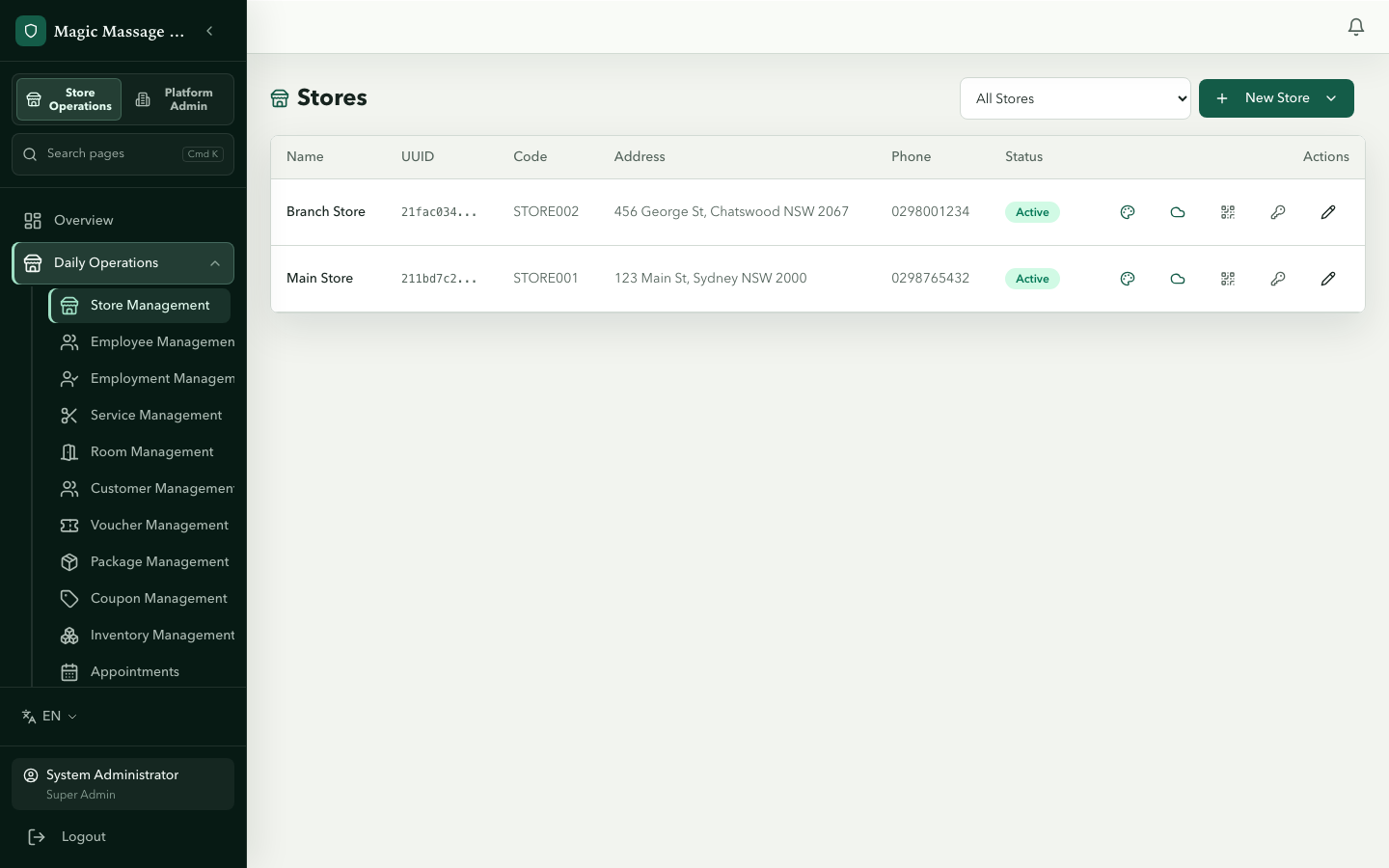
Store details
Admin → Store Management → select a store → Edit
| Field | What it does |
|---|---|
| Public display name | The trading/display name shown on POS, reports and receipts; the Tenant legal name is a separate field |
| Public URL slug | Immutable public slug (2–20 lowercase letters, digits or hyphens); generated during normal create flows |
| Address / Phone / Email | Printed on receipts and tax invoices. Phone is Australian-only; email syntax is validated |
| Suburb | Required. Drives the public store listing and the automatic Suburb: … store group; it cannot be cleared once set |
| State / Postcode | State is one of the eight Australian state/territory codes; postcode is four digits |
| Timezone | Determines how store-local timestamps and dates display in reports (default: Australia/Sydney). It does not automatically close a Business Period. |
| Status | Active / Inactive — inactive stores don't appear on POS |
Opening hours
The Opening Hours visual editor lets you set hours per day of the week. Drag or type start/end times.
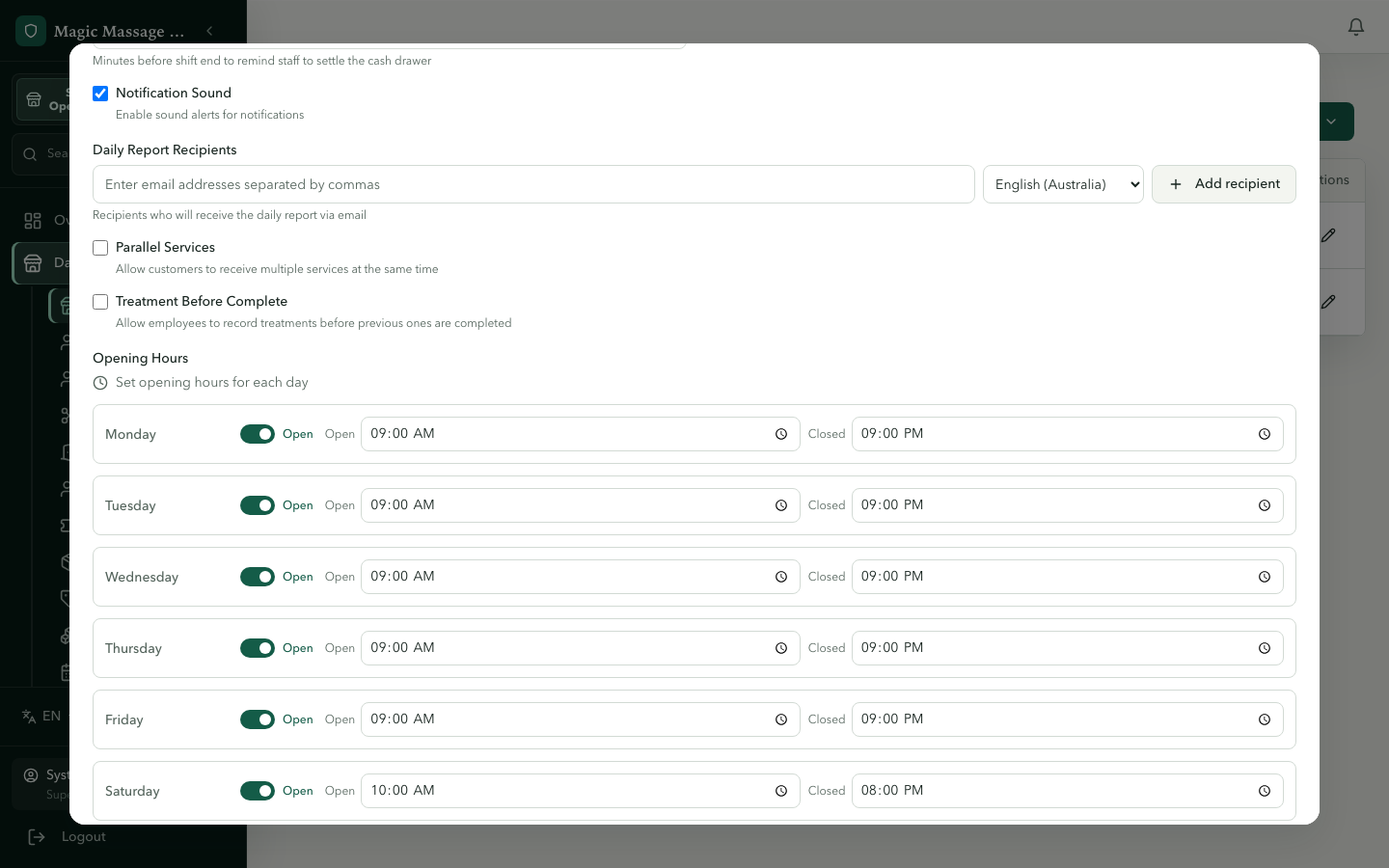
Opening hours affect:
- Conflict checks (appointments outside hours are flagged).
- Store schedules and time-based dashboard context.
Opening hours do not complete Final Settlement. Staff deliberately complete it from the active POS when the Business Period is ready to close.
Notification settings
The Daily Report Recipients list must contain at least one email address before the store settings can be saved — the store's own email address is not used as a fallback. If a store has no recipients configured (for example a store that was never edited after creation), Final Settlement still completes, but the daily report task records a skipped — no recipients outcome and sends nothing; the cash-variance alert and the Owner Daily Brief are skipped the same way.
Services & categories
Admin → Service Management
Services are what customers pay for. Each service has:
| Field | Required | Notes |
|---|---|---|
| Name | ✓ | Shown on POS service picker and receipts |
| Category | ✓ | Groups services in the picker (e.g. "Massage", "Facial") |
| Duration (minutes) | ✓ | Drives end-time calculation and room occupancy |
| Price | ✓ | In cents internally, displayed as dollars |
| Commission rate / fixed | — | Per-service commission; overridden by employee-level if store strategy says so |
| Code | — | Read-only Store-scoped code generated by the server |
| Active | ✓ | Inactive services won't appear on POS |
The form previews the same customer card used by Public and Kiosk. Use a recognisable customer-facing name; duration is a structured fact shown on Public, Kiosk and POS and drives booking availability.
If the normalised name matches another service in the same Store, the form shows a possible-duplicate warning. It does not block saving or merge services.
Voucher and Package forms also preview the same customer-facing offer cards used by the Public shop. Check the rendered name, duration or inclusions, and price before saving.
Massage starter catalogue
When creating services, choose the Store and select Import massage starter catalogue. This creates one normal category and four editable services with English source names, Chinese/Thai display names, standard durations and placeholder prices. Importing the same template again is safe and does not duplicate rows. The action requires catalog.manage; if it is unavailable, ask the tenant admin to review the role permission. Review every price before publishing; the placeholders are not market recommendations.
Service categories
Categories appear in a dropdown on the service form. There is no Admin screen for creating them — categories are managed through the API. Categories only affect the grouping in the POS picker — they don't change pricing or commission.
Rooms & workstations
Admin → Room Management
Each room represents a physical space where services happen. The POS room board shows their live status.
Each room holds one or more stations (beds/chairs). Station count and per-station status drive the POS room board's availability figure and the station-utilisation view in Owner intelligence.
| Field | Notes |
|---|---|
| Name | Displayed on the room board and in service assignment |
| Code | Read-only RNN code generated by the server inside the Store |
| Beds / Chairs | Number of stations of each kind; the total must be at least 1 and becomes the room's capacity |
| Status | Available / Occupied / Cleaning / Maintenance. Individual stations inside a room use Available / Cleaning / Maintenance |
| Sort order | Position of the room on the POS room board |
| Active | Inactive rooms are hidden from POS |
The room board on POS auto-refreshes every ~30 seconds. Room status changes made by one operator are visible to everyone within that refresh cycle.
Store-level settings
Admin → Store Management → edit the store
| Setting | Default | What it does |
|---|---|---|
| Parallel services | Off | When off, one therapist/room = one service at a time. Turn on only if your store deliberately runs overlapping services. |
| Commission strategy | service | How commission is resolved: employee (employee-level override wins), service (service-level wins), higher (whichever is more). |
| Employee name in Admin operations | Display name | Select legal name only if this Store needs it for employee performance, visa reminders, settlement/daily-report approvers and the employee list. Customer-facing screens stay on display names; payroll, STP, tax and audit stay on legal names. |
These are stored in the store_settings KV table and take effect on POS immediately.
Tips
- Test changes on POS: after editing a service or room, open POS and confirm it looks right.
- Deactivate vs delete: deactivating a service keeps it in reports (historical records reference it); deleting removes it from everywhere. Prefer deactivation.
- Opening hours are advisory: they help with scheduling but don't hard-block POS use outside hours or define the Business Period boundary.