Reports & finance
Preparing evidence for a payment dispute
Open Financial exceptions → Disputes and locate the recorded dispute. Select Download evidence draft (PDF). Access requires financial-exception permission and access to the dispute's store.
Review the English PDF before submitting it through your payment provider's portal. It includes available purchase, voucher/package, notification, redemption, reversal and linked service facts. Issuance or redemption does not by itself prove that a massage was completed; read the service status and timestamps separately.
The checklist identifies evidence to obtain separately: the provider's reason and deadline, payment authorization/3DS, purchase-time terms, receipts and relevant customer correspondence. For a gift, explain the purchaser/recipient relationship. Customer identities, clinical notes and redeemable codes are excluded from the draft. Missing or inaccessible records do not establish that an asset was unused.
Downloading does not submit evidence, change the dispute's status, issue a refund, freeze an asset or record a bank decision. Keep the submitted copy and provider receipt in your approved case records. Automatic provider submission is not connected.
Your window into what happened — from Business Period reconciliation snapshots to individual transaction drill-down.
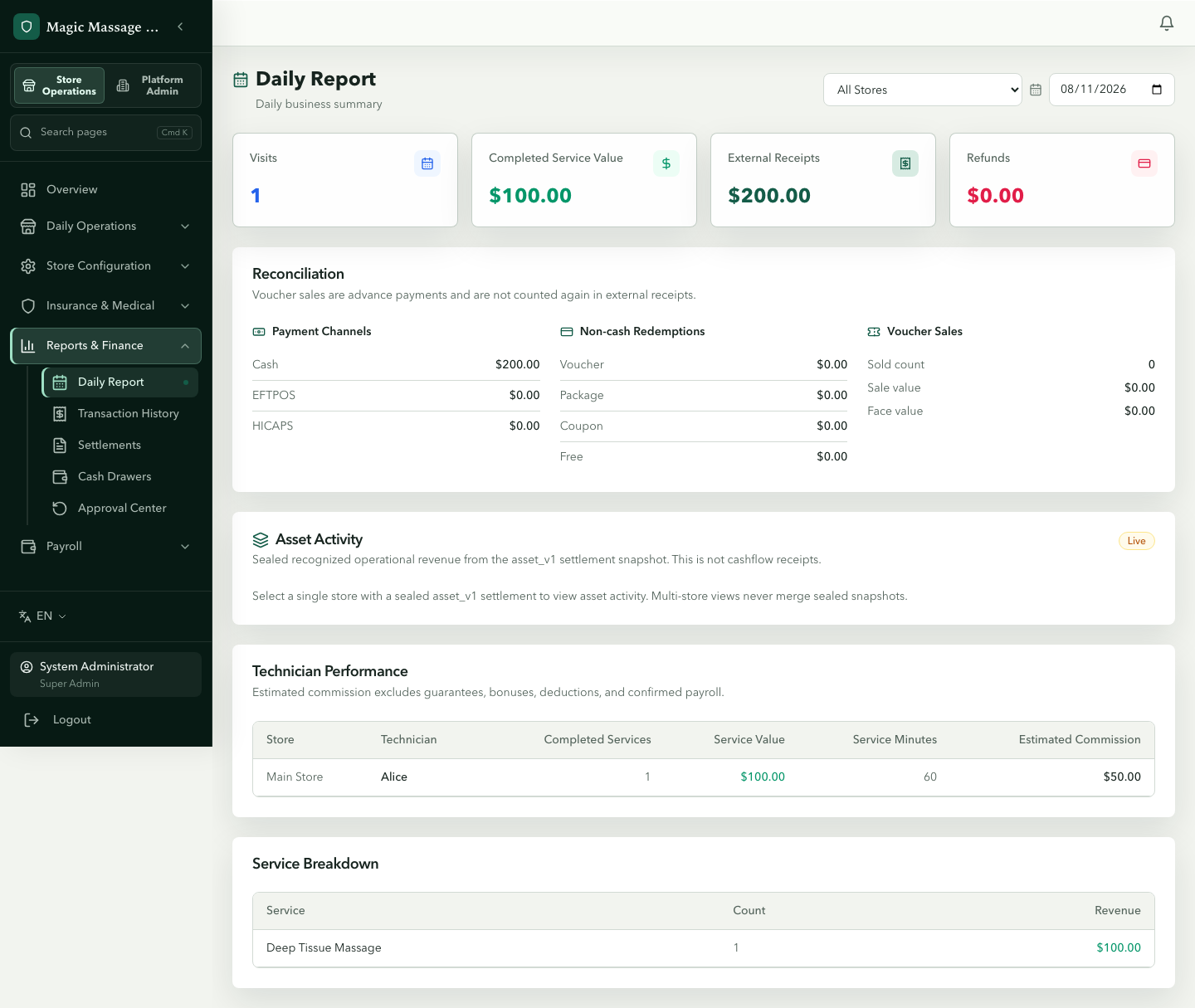
The daily report
Admin → Reports & Finance → Daily Report
Select a store and date to see the day's complete picture:
| Card | What it shows |
|---|---|
| Reconciliation | Expected vs actual cash, terminal totals vs POS-recorded totals |
| Asset activity | Voucher/package/coupon sales and redemptions for the day |
| Settlement | Sealed Business Period reconciliation, with version number and correction history |
| Income composition | Cash, card and other external receipts allocated to services, products and voucher/package sales; refunds and net receipts |
| Technician performance | Completed work value, service minutes and accrued commission, including steps and adjustments; expand an employee for item details |
| Operating summary | Actual receipts, accrued commission, cash expenses and operating remainder, with a separate cash-float reconciliation |
| Service breakdown | Recorded service names, completed counts and work values |
Reading income and commission
Cash + card total is net cash plus EFTPOS receipts. External receipts also includes HICAPS and online receipts when present. Money received from selling a voucher counts on the day it is collected; using that voucher for a service does not create another receipt. The income-composition payment columns already subtract refunds. Online rows and columns are hidden when their amounts are zero, since online collection is not currently in use; nonzero historical online amounts remain visible.
Employee work value and actual receipts answer different questions. A company-sponsored free service contributes work value and commission, but no money received. An employee's voluntary free service contributes neither work value nor commission to this report; the decision remains in the audit record. Only employees who performed work earn service or configured-step commission.
Expand an employee to see the recorded service or step, time, work value, commission, payment allocation and receipt sequence. The commission total includes refund and voluntary free adjustments. It is accrued commission, not a record of wages already paid or a payroll calculation including guarantees and bonuses.
Operating remainder is external receipts minus accrued commission and classified operating cash expenses. Actual cash wages paid are shown separately so commission is not deducted twice. If old cash expenses have no classification, the remainder is shown as unavailable; the report does not assume those expenses are zero. Opening float and cash taken away belong to drawer reconciliation, not sales or operating expenses.
For example, service cash of $453, card receipts of $1,767 and company-free work of $45 give $2,265 of employee work value. Selling a voucher for $110 cash makes actual cash $563 and cash plus card $2,330. With accrued commission of $1,132.50 and no operating expenses, the operating remainder is $1,197.50. The $300 opening float stays separate.
Sealed income sections retain their recorded names and amounts when catalogue settings or employee names change. Historical settlements without these snapshots show unavailable sections. An all-store daily view adds each accessible store's report for the selected Business Date; select one store to inspect its drawer and sealed operating summary.
Weekly, monthly and annual operating reports are described below. Payroll reports and the dashboard weekly trend continue to serve their separate purposes.
If auto-email is enabled, this report is sent as a PDF to the store's Daily Report Recipients after Final Settlement — you're looking at the same reconciliation data here. The recipient list must contain at least one address (see Store setup → Notification settings); a store with no recipients gets no email and the task records a skipped — no recipients outcome.
When a Settlement correction is approved, the same recipients receive the report again for the corrected version (subject marked corrected vN): the email lists which figures changed against the previous sealed version, the correction reason and who approved it, and attaches the corrected PDF. Each sealed version is emailed exactly once.
Weekly, monthly and annual operating reports
Open Operating reports, select one store, then choose Weekly, Monthly or Annual and a date within the period. Weeks run Monday–Sunday; months and years follow the store's local calendar. These operating reports are separate from payroll.
Read the overview and comparisons first, then projects, employee income, vouchers, refunds and reconciliation. The final management facts describe recorded figures and comparable changes, with no guessed causes. Annual reports also include a monthly project/employee appendix; select a month in the annual comparison table to open its monthly report.
Complete figures and recorded subtotals
A preview may contain missing days, live work or settlements awaiting review. It shows recorded subtotals and the reason it cannot yet be finalized. Unknown is not zero. Comparisons use the same completed progress and display the compared date ranges. A zero or negative baseline does not produce a misleading percentage increase.
The monthly calendar and annual month tiles display values and source status. Darker green indicates higher complete receipts within that report; amber identifies incomplete data. A confirmed non-trading day may have zero activity. It is not a missing settlement.
Employee income includes ordinary and configured-step commission, refund adjustments and voluntary-free adjustments. Cash wages paid remain separate. Voucher sales/top-ups and voucher use remain separate. The historical voucher closing balance and age bands use the corresponding period's state; missing historical coverage stays unavailable. Operating remainder is not net profit when costs such as rent and utilities are incomplete.
Save a version, download and archive
Use Generate only when the report is ready. The system saves a numbered version; repeating the same generation reuses it. Changed source facts can create a new version. Download previews current data; Saved PDF downloads a particular saved version. The interface language selects the English, Chinese or Thai PDF.
Saved-language PDFs use the store's existing OneDrive document connection. The history shows each file's archive state, attempts and last successful sync. Queued or pending is not confirmation of a cloud upload. Refresh the status to inspect progress; a failed upload needs attention to the existing document connection.
Management recipients and sending
Configure Management recipients for the selected store. Choose email, an individual WeCom internal user ID, or an international WhatsApp number, and confirm the recipient is authorized to receive that store's financial report. Choose their PDF language. These recipients are independent from customer/marketing lists and daily-report recipients.
WhatsApp also requires recorded recipient consent and an approved template with a PDF document header and no variable body parameters. Enter its exact approved name and language code; this template language can differ from the PDF language. The store's channel connection must already be configured.
Expand Report delivery on a saved version and confirm Send / retry. Inspect each channel's state and attempt count. Sent copies are not resent. Pending or failed copies may be retried; an unknown outcome must be reconciled before attempting another send, because the provider may already have accepted it. Delivery state and OneDrive archive state are independent.
Automatic schedules and report switches
Automatic schedules start off. After setting management recipients, open Report schedules to enable the required periods. All times use the store timezone.
- Weekly defaults are Sunday 21:00 and Monday 09:00. An incomplete Sunday check waits until Monday even if the store finishes later Sunday night. If still incomplete on Monday, the system records the reason and requests manager review; complete the work and send manually.
- Monthly and annual schedules require an explicit time. Choose the last day of the period with a next-day fallback, or the first day of the next month/year. An incomplete fallback check also waits for manager action.
- The recent schedule history shows deferred, manager-review and queued results. Queued means prepared for delivery, not delivered.
Tenant settings provide defaults for daily, weekly, monthly and annual reports. A store can inherit or override each switch. Turning a report off pauses new generation/sending but does not delete saved history or stop financial Final Settlement.
Store comparisons and reconciliation
Store comparison shows only accessible stores within the selected store's Tenant: receipts, trading-day average, services, trading days and accrued commission divided by work value. Incomplete rows retain their recorded-data label. Annual comparisons include monthly detail. Download the separate comparison PDF when reviewing several stores. This comparison reads frozen daily sources; it does not invent live unfinished receipts.
Terminal differences compare recorded POS and terminal amounts. A zero difference does not prove bank settlement. The review section shows existing HICAPS cases and cash variance review/investigation records, including recorded reasons and handling notes. No recorded case is not proof that every payment was reconciled. Saved versions retain the handling state captured at generation; later decisions do not rewrite old PDFs.
Settlement list
Admin → Reports & Finance → Settlements
A paginated list of Settlements across your accessible stores. Each row shows:
- Business Date, store, status and version number.
- Click to open the settlement detail page — the same view POS sees, plus:
- Download PDF — the sealed reconciliation document for that Business Period.
- Attachments — supporting files (terminal receipts, worksheets) uploaded by an Admin while the version was an approved correction draft; read-only once sealed.
- Correction history — if a new version was approved, who approved and what changed.
The Business Date is a label for a Business Period, not a midnight-to-midnight ownership rule. Activity recorded after Final Settlement belongs to the next active Business Period even when the calendar date has not changed.
BAS summary export
Admin → Reports & finance → BAS Summary (super admin and tenant admin only)
A read-only summary of issued Invoices by GST class for a date range you choose (pick a calendar quarter or enter dates), for one store or all stores you can access:
- One row per class — Taxable, GST-free, Input taxed, Division 100 voucher, issuer not GST-registered — with document count, amount, taxable amount and GST. Empty classes still appear as zero rows so nothing is hidden.
- Totals, adjustment-note deltas, and a reconciliation block comparing the document total with the net tender of the latest sealed Settlement of every Business Period in the range. Any difference, and any Business Date without a sealed Settlement, is called out.
- Purchases / GST credits are reported as not available: cash expenses do not record GST.
- Download CSV produces the same rows; notices are written as the first lines.
BAS label mapping
The report uses neutral keys (sales.total, gst.on_sales, …). The BAS label your
accountant wants beside each key (for example the "G" and "1A" style labels) is not built in:
record it in the BAS label mapping section on the same page as a versioned, append-only
entry with a change reason. Until a mapping exists the page and the CSV show the neutral keys
and a visible "mapping not configured" notice.
The export is a working paper for your accountant, not a lodgeable return. Whether the figures should be read on a cash or accruals basis, and which period an adjustment note belongs to, are decisions for your accountant; this feature has not been accountant-validated. Adjustment notes issued automatically by an approved financial correction (see Approval Centre) appear here like any other note, dated to the corrected Business Period.
Transaction history
Admin → Reports & Finance → Transaction History
Every payment and refund across all stores, searchable and filterable:
- Filter by store, date range, payment method, status.
- Each row links back to its visit for full context.
- Useful for: finding a specific EFTPOS transaction, investigating a disputed charge, reconciling with bank statements.
Audit log
Admin → Platform Settings → Audit Logs
A read-only chronological log of system events:
- Who did what, when, from where.
- Actions are labelled with severity (high/medium/low).
- Filterable by store, severity, free-text search and date range.
- High-severity events: refunds, PIN resets, Settlement correction requests, role changes.
Reading the dashboard cards
The Admin dashboard's KPI row and charts are built from the same data:
| Card | Source |
|---|---|
| Today's revenue | Current dashboard view of operational payment facts |
| Today's visits | Count of visits created today |
| Weekly trend | Seven-day revenue chart from available reporting facts |
Pending checkouts (visits with a balance > 0 that haven't been closed) are not a KPI card: they appear as an item in the dashboard's Needs attention list.
If a number looks off, check: is the store filter correct? Was there a later refund? Is there a newer Settlement correction version? Are you comparing the same Business Period rather than only the same calendar date?
Tips
- The PDF is reconciliation evidence — sealed Settlement PDFs are time-stamped, versioned and archived. They are not the only financial record: use payments, refunds, transaction history, cashflow records and other operational facts when investigating.
- Drill down, don't guess — every report number links back to individual visit payment records. Follow the trail rather than trying to reconcile in your head.
- Sealed ≠ beyond correction — if a settled period is wrong, request a versioned Settlement correction. The new version stays linked to the same closed Business Period; that historical period does not become the active period again.
Management reports also support an Android SMS text summary. PDFs remain separate. See Android SMS for setup, appointment consent and delivery states.