Shifts — clock in, clock out
Start your shift
- From the dashboard, open Shifts (or the quick action).
- Pick your name, enter your PIN, confirm Clock In.
- You now appear on the on-duty board and can be assigned services.
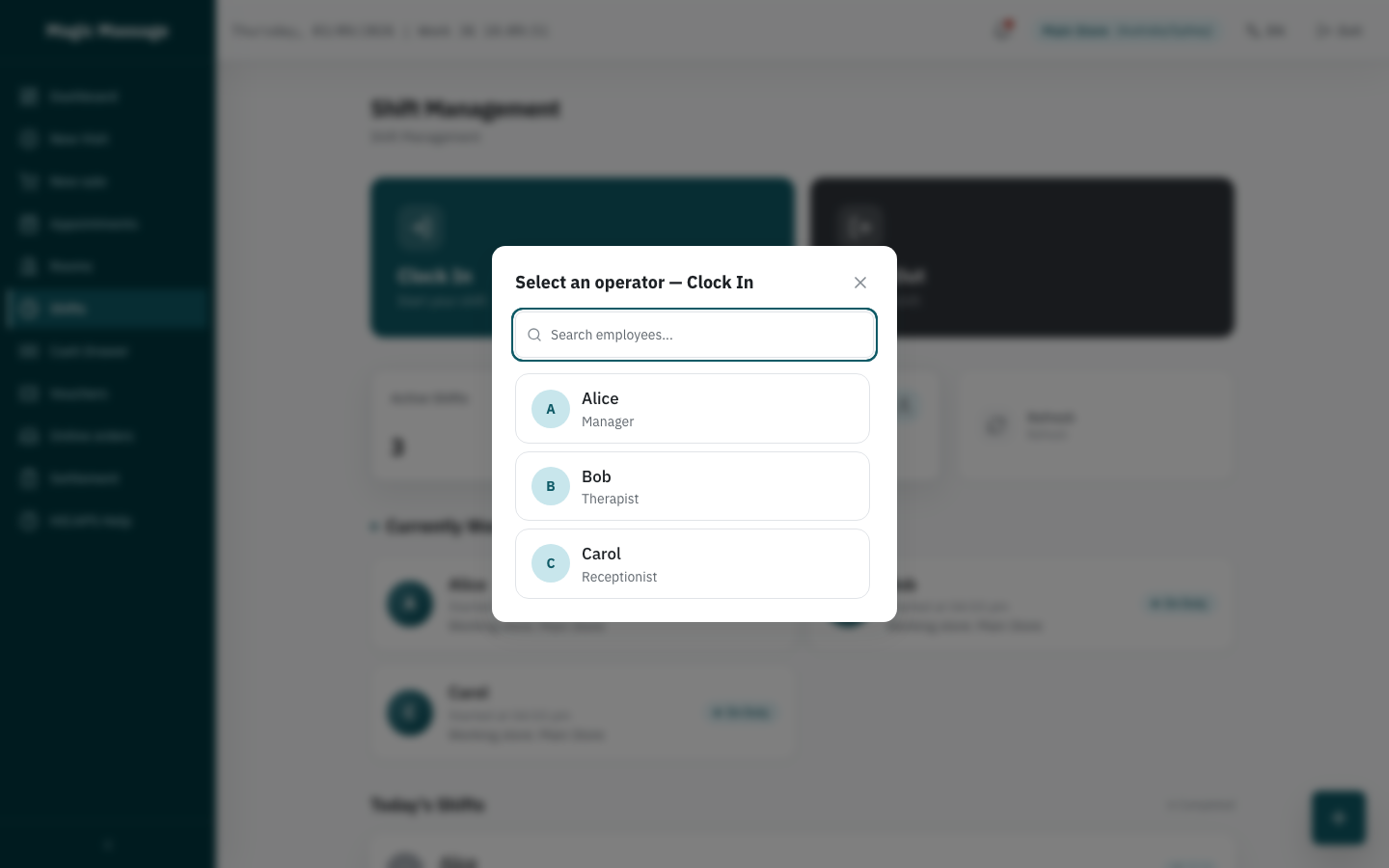
Why you must clock in first
POS refuses to let someone who isn't on shift open visits or perform services. This isn't bureaucracy — it's what makes the day reconstructable: every service record points at a person who was verifiably at work.
Manager-authorised clock in
No roster entry for you at this store today? You can still clock in with Manager-authorised clock in: enter the reason, and a manager confirms with their own PIN. This creates a temporary roster entry for the day, and payroll follows this store's employment settings.
During the day
- The staff table on the dashboard shows everyone on duty and whether they're free, in service, or finishing up.
- Your commission is calculated from the services you actually performed — being clocked in but not assigned earns nothing, so keep assignments accurate rather than "fixing it later".
End your shift
- Open Shifts → Clock Out, PIN to confirm.
- If you're mid-service, finish or transfer it first — the system will not stop you, but an unfinished service still blocks the Visit close and Final Settlement.
Forgot to clock out? If your store has enabled the auto-clock-out task, the system closes forgotten shifts about an hour after your store's closing time (closing time plus a grace period, default 1 hour) and marks them as system-closed (SYSTEM_AUTO) — your manager can see the difference between "clocked out" and "was clocked out by the system". Make a habit of clocking out yourself.