Your account & security
Manage your Admin login credentials, enable multi-factor authentication and understand what your role allows you to change.
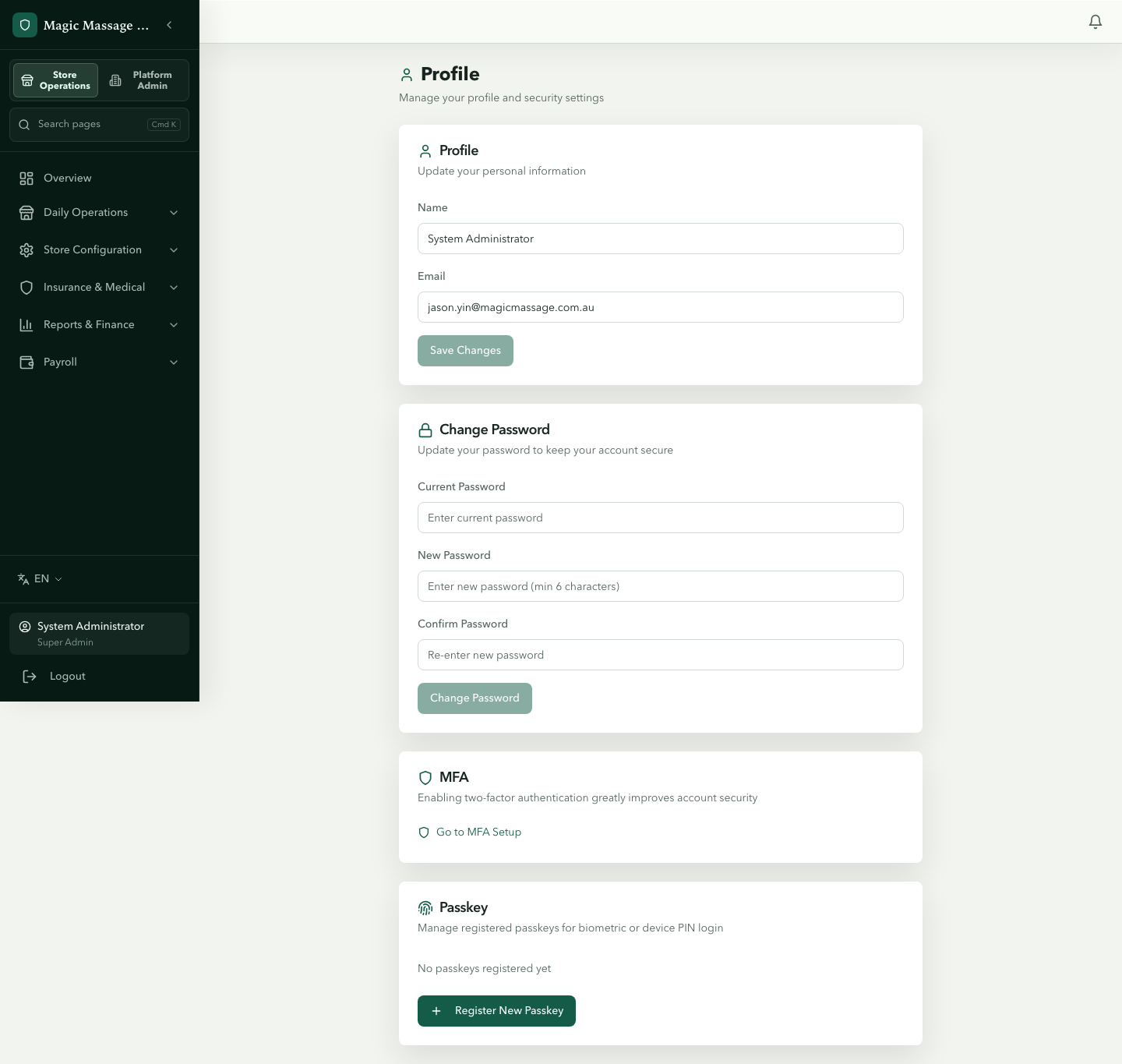
Profile & password
Click your name at the bottom of the sidebar → Profile (page title Profile & Security)
| Field | Notes |
|---|---|
| Name | How your name appears in audit logs and approvals. |
| Your login identity. You can change it here; the new address takes effect immediately with no re-verification step. | |
| Password | Changed from the separate Change Password card. Must meet minimum length. |
The profile form has two fields only — Name and Email. Admin language is set from the sidebar language switcher, not stored on your profile.
Setting up MFA
Multi-factor authentication adds a second layer beyond your password. Two options:
Option A: Authenticator app (TOTP)
- On Profile, scroll to the MFA card and click Go to MFA Setup.
- Scan the QR code with Google Authenticator, Authy or any TOTP app.
- Enter the 6-digit code to verify.
- Done — next login asks for password + code.
Option B: Passkey (recommended)
- On Profile, find the Passkey card and click Register New Passkey.
- Your browser/device prompts for Touch ID, Face ID or Windows Hello.
- Confirm the biometric.
- Done — next login offers "Sign in with Passkey" (no password needed).
Passkey is both the most secure and the most convenient option. One tap on Touch ID or a glance at Face ID — no password to remember, no 6-digit code to type, no phone to find. It's faster than typing a password and immune to phishing. Set one up on every device you use to access Admin.
Backup codes
Once TOTP is enabled, the Backup Codes card on the Profile page shows how many one-time backup codes you have left. Regenerate Backup Codes issues a fresh set — the new codes are displayed once only, and the old set stops working immediately. Store them safely; each code replaces an authenticator code exactly once.
MFA policy enforcement
Your platform may require MFA for certain roles. If policy requires it and you haven't set up MFA:
- After the grace period, login only allows you to complete MFA enrollment.
- You cannot access any other Admin page until enrollment is done.
- Either TOTP or Passkey satisfies the requirement — you don't need both.
Disabling MFA
- On the MFA card click Disable MFA (or remove a Passkey from the Passkey card).
- Enter your current TOTP code (6 digits) to confirm.
- If your platform policy requires MFA for your role, you cannot fully disable it — at least one method must remain active.
What each admin role can change
Admin login roles are super admin, tenant admin, regional manager and store manager. A store manager is bound directly to one or more stores (never to a store group). What a regional or store manager may do beyond day-to-day operations — request or approve financial corrections, issue tax-invoice adjustment notes, lock or correct treatment records, manage voucher instances, view store sharing, store twins and the subscription — is a permission the tenant admin grants or revokes per role under Platform Settings → Role Permissions. By default a store manager can request but not approve financial corrections and cannot issue adjustment notes. Even with the approve permission, nobody can approve a request raised by a higher-level role. The POS "manager" is a separate employment role.
| Setting | Super admin | Tenant admin | Regional manager |
|---|---|---|---|
| Own password & MFA | ✓ | ✓ | ✓ |
| Own name & email | ✓ | ✓ | ✓ |
| Other admin's password | ✓ | API only (see note) | — |
| MFA policy (force for roles) | ✓ | — | — |
| Create admin accounts | ✓ | API only (see note) | — |
MFA policy is platform-global and can only be set by a super admin under Platform Settings → Security; tenant admins cannot change it. The API permits a tenant admin to create and manage admins in their own tenant, but the Admin Accounts page is currently only shown to super admins — so in practice ask your platform operator.
Remember me & shared devices
The Remember me checkbox on login controls where your session token is stored:
- Checked:
localStorage— survives browser restart. Convenient on your personal device. - Unchecked:
sessionStorage— cleared when you close the browser. Use this on shared/public computers.
Never use Remember me on the POS counter tablet. If someone opens the Admin URL on that device, they'd be logged in as you.
Tips
- One Passkey per device — register a Passkey on your phone AND your laptop for redundancy.
- Lost access? — if you lose your authenticator app and all Passkeys, use a saved backup code. If you have none left, only a platform (super admin) operator can reset your MFA.
- Audit trail — your password changes and MFA enrollments are logged. Admins with audit-log access can see them.