Inventory & stocktake (if enabled for your store)
Track consumables (oils, towels) and retail products (creams, gift items). Stock deducts automatically — nobody at the counter presses a "deduct" button.
Key concepts
| Concept | Meaning |
|---|---|
| Inventory item | A tracked product (consumable or retail) with a current stock level |
| Category | Grouping for items (e.g. "Oils", "Retail") |
| Stock movement | Any change in quantity — goods-in, sale deduction, manual adjustment |
| Service link | A consumable item linked to a service (auto-deducts when service starts) |
| Stocktake | Physical count that reconciles system stock with reality |
Items & stock levels
Admin → Inventory Management → Items tab
Each item has:
| Field | Notes |
|---|---|
| Name | Displayed on POS (retail) or in reports (consumable) |
| SKU / Code | Read-only Store-scoped SKU-NNN generated by the server |
| Category | Grouping |
| Type | consumable (used during service) or retail (sold to customer) |
| Unit | Controlled code; packaging units (each/pack/box/bottle/tube/sachet/pair/roll) remain distinct from measurements (ml/l/g/kg) |
| Current stock | Live quantity (updated by movements) |
| Low stock threshold | Triggers a notification when stock falls below |
| Cost price / Sale price | For retail items |
Creating an item
- Inventory → Items → Create.
- Fill name, type, category, unit, threshold.
- Set initial stock via a goods-in receipt (see below).
Shared catalogue
The Shared Catalogue tab lists products published by partner stores under a sharing policy. Adopt copies a product into your local stock as an independent item — it starts at zero stock and is not linked to the partner's quantities. You can set a local retail price that overrides the catalogue retail price.
Goods-in (stock receipts)
Admin → Inventory Management → Stock Receipts tab
When new stock arrives:
- Create receipt → select store.
- Add lines: item + quantity received + optional cost per unit.
- Save. Stock levels update immediately.
Each receipt is a permanent record — you can't edit it after creation, but you can create a new receipt for corrections.
Stock movements
Admin → Inventory Management → Stock Movements tab
A read-only log of every quantity change. Every movement is typed In / Out / Adjust and tagged with its source:
| Source | Trigger | Type |
|---|---|---|
stock_receipt | Stock receipt created | In |
retail_payment | Customer pays for a retail item at POS | Out |
sale_line | Retail sale line | Out |
sale_return_line | Retail return | In |
service_record | Service with linked consumable starts | Out |
stocktake | Stocktake applied | Adjust (aligns to counted) |
manual_outbound | Stock Outbound recorded in Admin | Out |
Service-consumable links
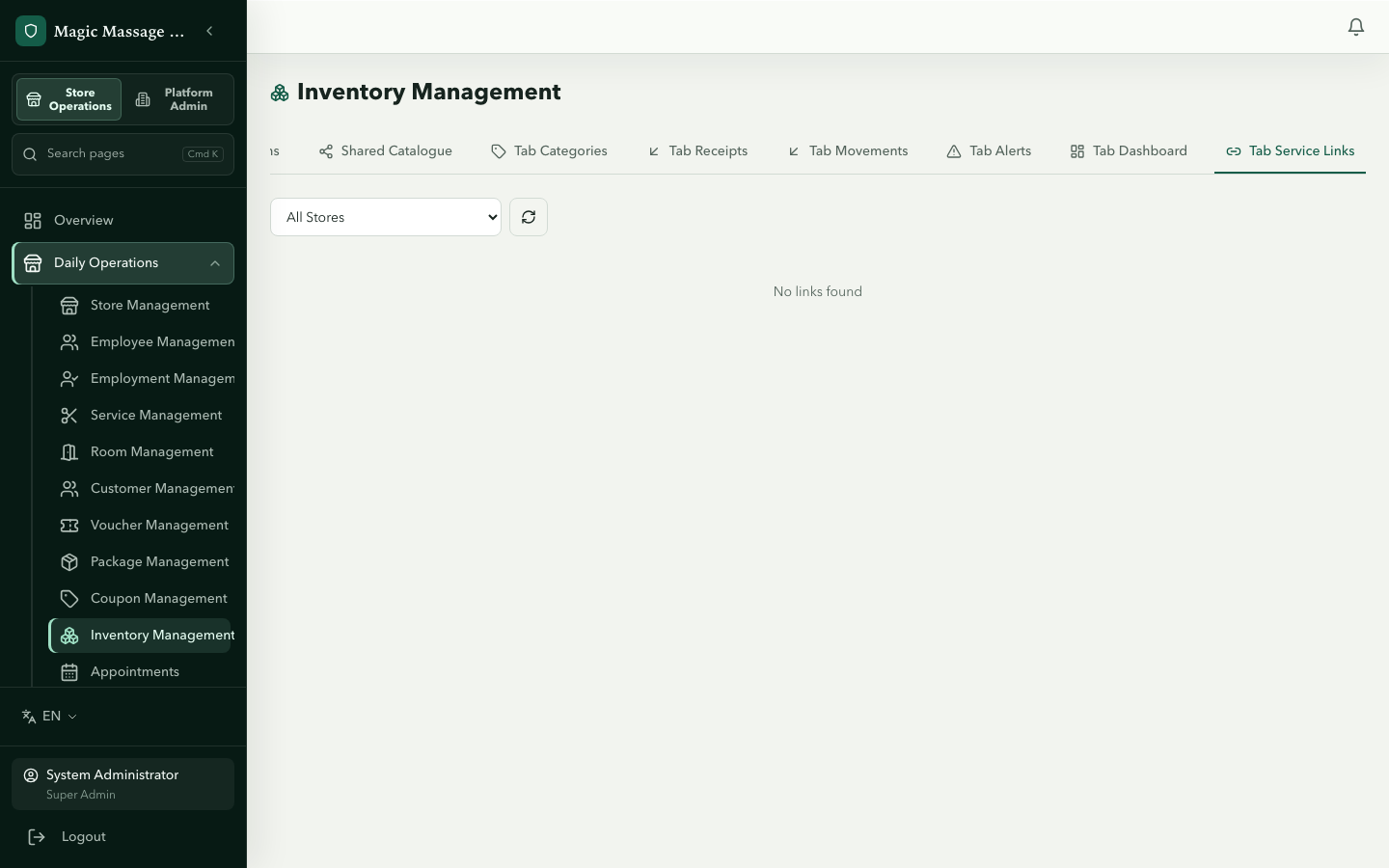
Admin → Inventory Management → Service Links tab (or per-item detail)
Link a consumable item to a service so it auto-deducts when that service starts:
- Select the service (e.g. "Deep Tissue 60min").
- Select the consumable (e.g. "Massage Oil").
- Set quantity per service (e.g. 30ml).
- Save.
When a therapist starts that service on POS → 30ml is deducted from stock automatically (SYSTEM_AUTO).
Non-blocking at service start: if stock is at zero, the service still starts — the deduction clamps to zero and the shortage is recorded. Services are never blocked by inventory. Other movements (manual outbound, retail deductions, stocktake apply) are not clamped.
Retail sales at POS
When a retail item is added to a visit and payment completes, stock deducts automatically. The deduction is attributed to SYSTEM_AUTO and linked to the payment.
POS staff see a read-only inventory view — they cannot manually adjust stock from POS.
Stock outbound (manual)
From the Items tab, use Stock Outbound on an item to take stock out by hand — staff usage, wastage, damaged goods — with a quantity and a reason. It records a manual_outbound movement and is the only manual way to reduce stock outside a stocktake.
Low-stock alerts
When an item's stock falls below its threshold:
- A notification is sent to the store's POS (appears in the notification bell).
- A banner may appear on the POS dashboard (dismissed per day).
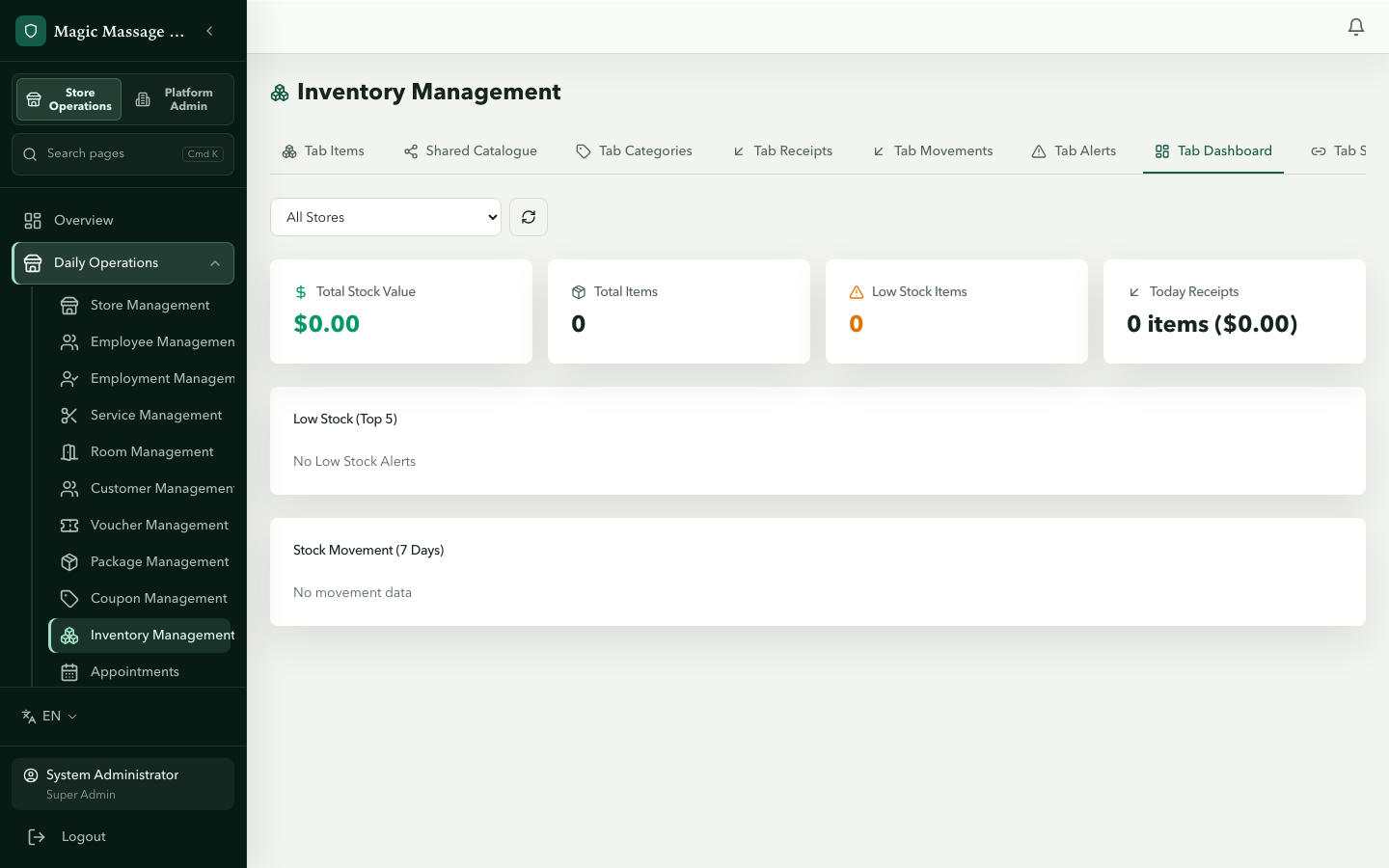
- Admin → Inventory Management → Dashboard tab shows the low-stock count and the five lowest items.
- Alerts are deduplicated: no new alert is raised for an item while an earlier one for the same item is still unread or undismissed.
Stocktake (physical count)
Admin → Inventory Management → Stocktake tab
A stocktake reconciles system quantities with what you physically count.
Creating a stocktake
- Stocktake → New.
- The system pre-fills all items with their current system stock.
- For each item, enter the counted quantity (what you physically have).
- Lines where counted ≠ system are flagged as variances.
Confirming and applying a stocktake
- Review all variance lines and enter a reason on every line where counted ≠ system — Confirm is rejected while any variance line has no reason.
- Confirm the stocktake. This freezes the sheet; stock is not changed yet.
- Apply the confirmed stocktake. Only now are adjustment movements written (source
stocktake) and stock moved to the counted figures.
Statuses: draft → counting → confirmed → applied (or reopened).
Reopening a stocktake
Found an error after confirming?
- Submit a reopen request (with reason).
- A different admin approves in the Approval Centre.
- A new draft stocktake version is created, seeded from current stock; the applied version stays as-is.
- Count, confirm and apply the new version.
Tips
- Count regularly — weekly for high-turnover items, monthly for stable stock.
- Don't guess goods-in — enter the exact quantity received. Garbage-in = garbage-stocktake.
- Service links save time — once linked, you never think about consumable deduction again.
- Low-stock threshold — set it at "time to reorder" level, not "already ran out".