Appointments
The appointment system lets you manage bookings before the customer arrives — from the front desk or via online bookings that land automatically.
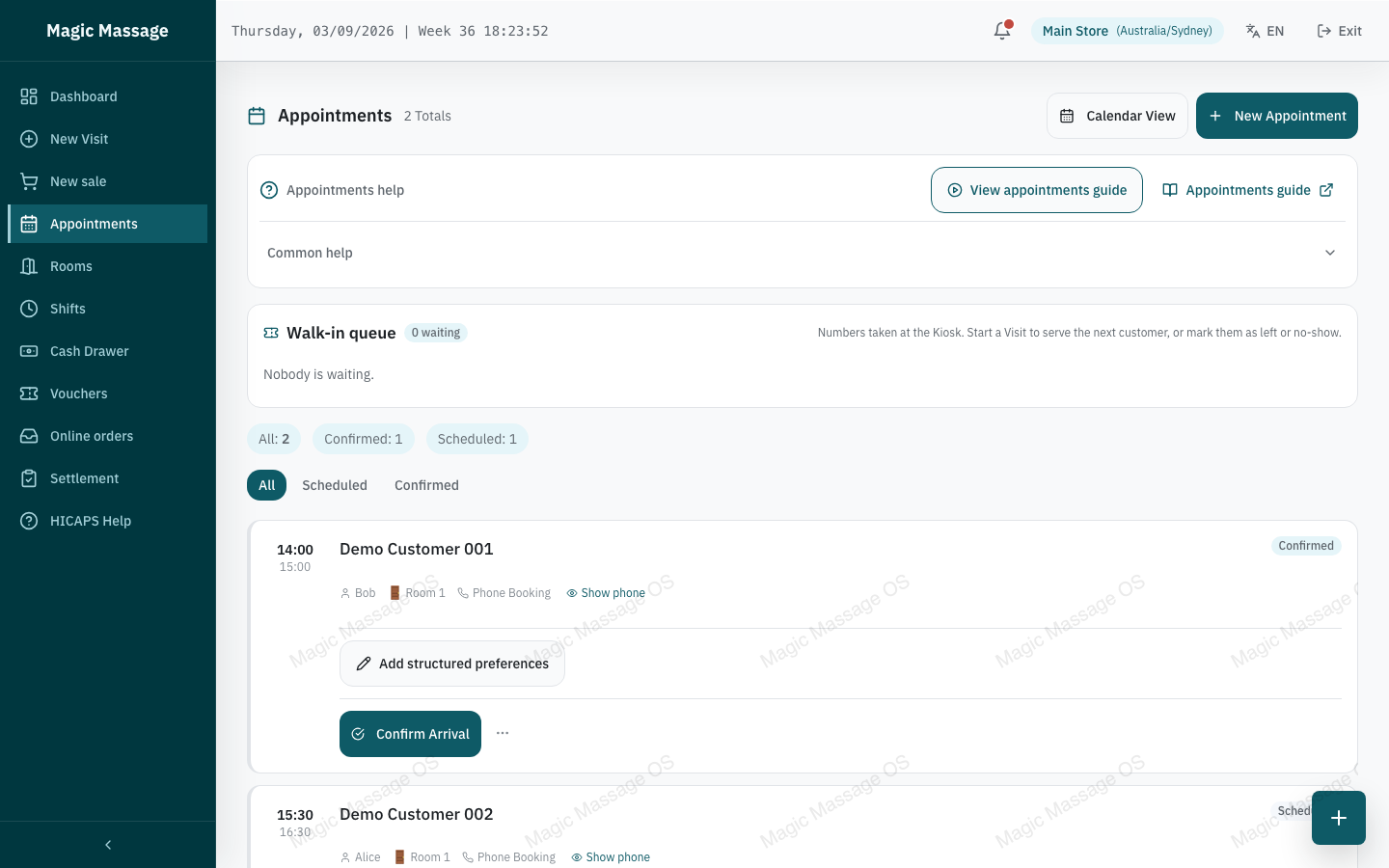
The appointment board
Open Appointments in the sidebar. The Board shows today's appointments as cards, colour-coded by status:
| Colour | Status | Meaning |
|---|---|---|
| Blue | Scheduled | Booked, not yet confirmed |
| Teal | Confirmed | Store confirmed the booking |
| Green | Arrived | Customer checked in (converted to Visit) |
| Stone | Completed | Visit finished |
| Red | No-show | Customer never arrived |
| Stone (grey) | Cancelled | Cancelled before arrival |
Cards are sorted chronologically. Tap a card to open its actions.
The calendar view
Switch to Calendar for a visual day-planner:
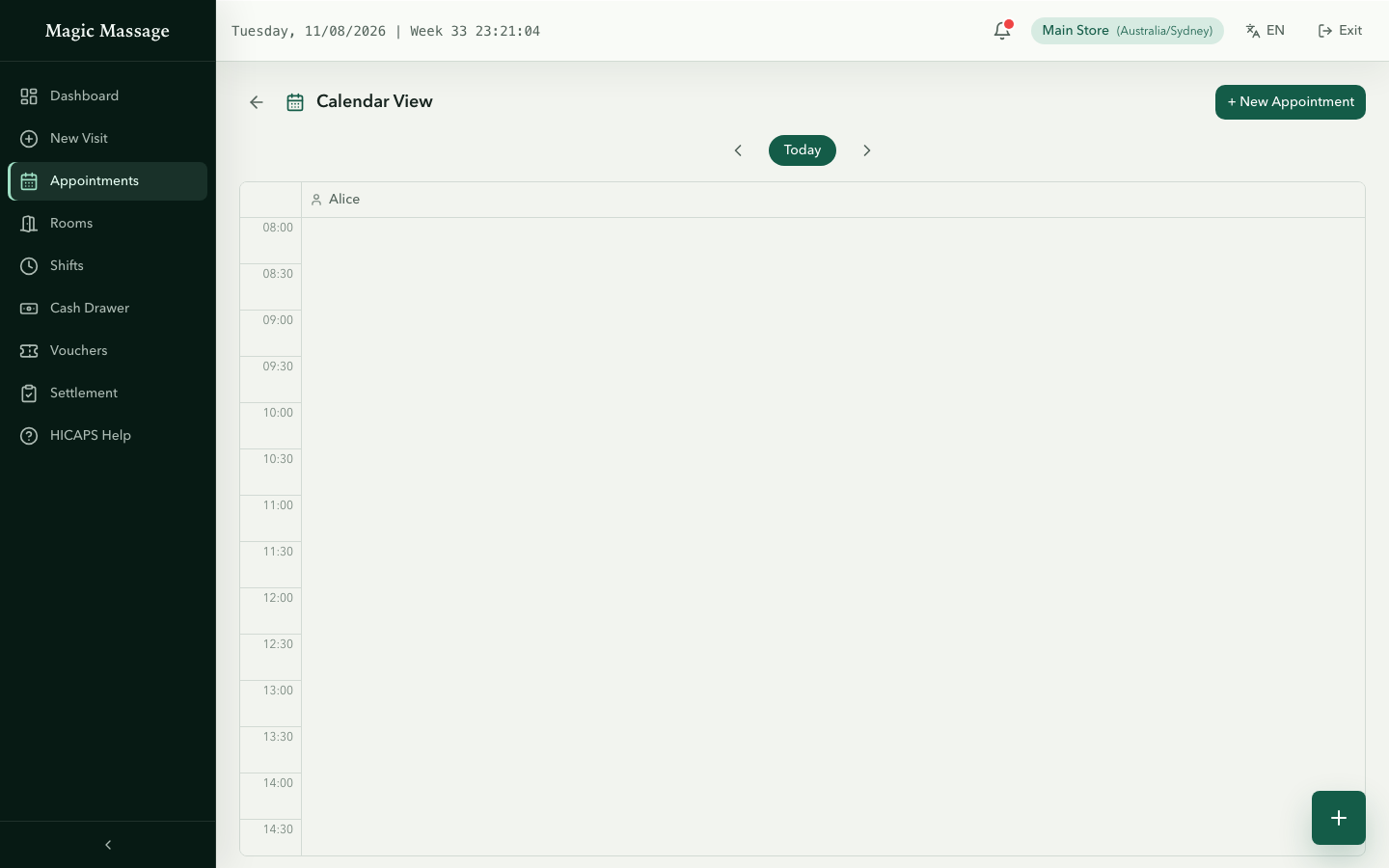
- Time axis runs 08:00–22:00 in 30-minute intervals.
- Columns: an Any Therapist column comes first whenever unassigned bookings exist, then on-duty therapists in fair-queue order, then therapists who have bookings but are off duty. Appointments appear as vertical blocks; overlapping bookings in one column are split into side-by-side lanes.
- Navigate dates with the prev/next arrows.
- A red line marks the current time (today only).
Creating an appointment
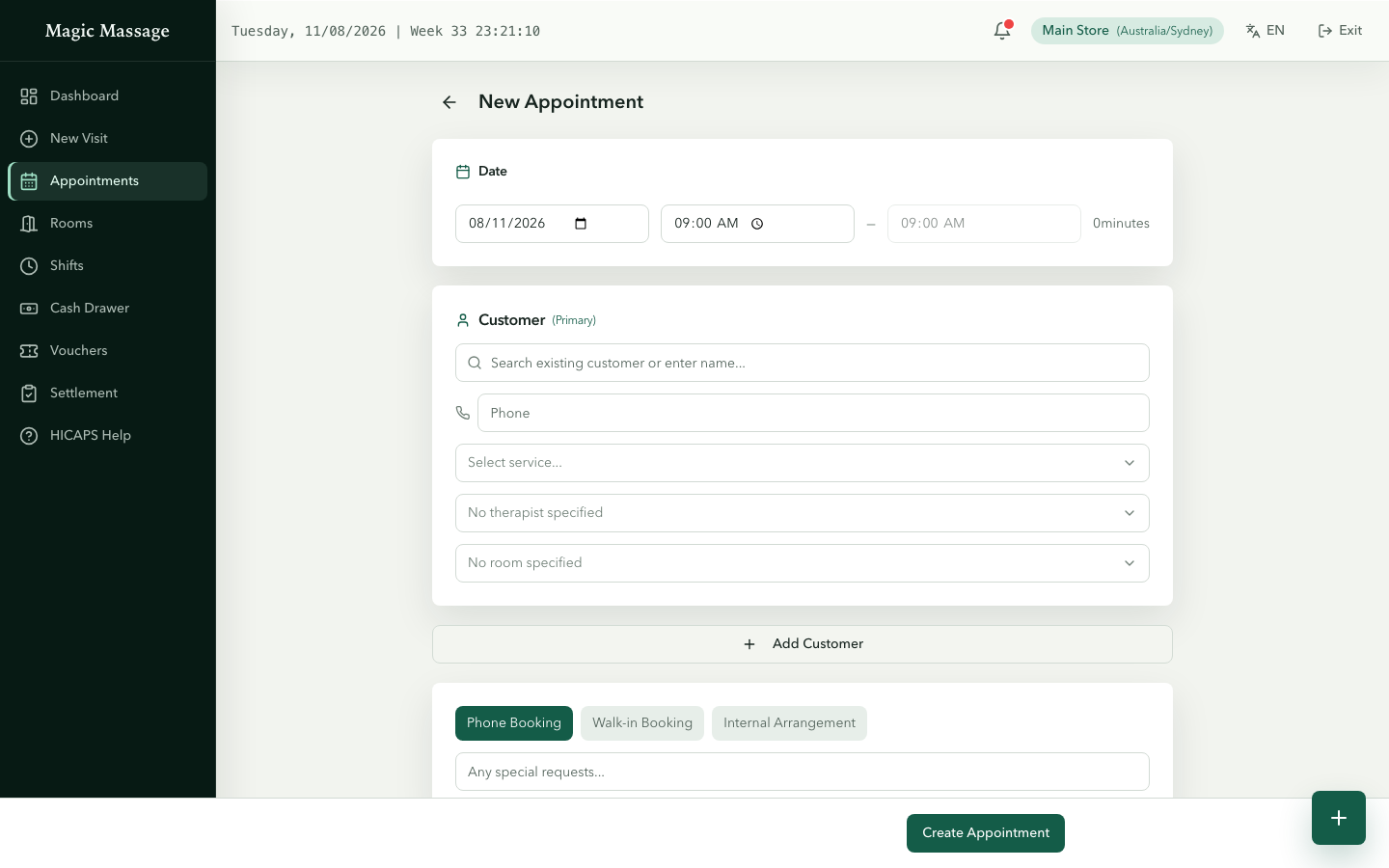
- Open Appointments → New (or tap the + button on the board).
- Add one or more customer cards — each card has:
- Customer (search or create new)
- Service (pick from your store's menu)
- Therapist (assigned per service)
- Room (optional)
- Time & date The permanent How should we address you? label asks for the customer's working or preferred name, not an assumed legal name.
- The system calculates end time automatically from service durations.
- PIN to confirm.
Conflict checks
Before saving, the system performs conflict detection:
| Check | What it catches |
|---|---|
| Roster | Therapist isn't rostered for that date/time |
| Therapist | Therapist already has an overlapping appointment |
| Room | Room already booked for that time slot |
| Time off | The therapist has approved leave/unavailability covering that window |
Not every check is a hard stop. Roster, time off and true overlaps refuse the booking. A room that is occupied or being cleaned, or a therapist who is mid-service right now, only produces a warning that you can override after checking.
If a hard conflict is detected, the appointment is refused with a clear message telling you which resource is busy. Fix the time, therapist or room, then try again.
Conflict checks also run when editing an existing appointment — the current appointment is excluded from the overlap check so you can shift its time without conflicting with itself.
Editing an appointment
- Tap the appointment card → Edit.
- Change time, therapist, room or services as needed.
- Only appointments in scheduled or confirmed status can be edited.
- PIN to save.
When the customer arrives — check-in
- Tap the appointment card → Confirm Arrival.
- The system converts the appointment into a Visit with services pre-filled.
- You're taken to the visit detail page, ready to start services.
- The appointment status changes to Arrived.
This is the bridge between "booked" and "at the counter" — no need to re-enter services manually.
Self check-in from the Kiosk
A customer with a booking code can check themselves in on the assisted Kiosk (their code plus the last four digits of their phone). This moves the appointment straight to Arrived — the same step as Confirm Arrival — and the card shows a Self check-in badge so you can tell it apart from a staff check-in.
- If no therapist was assigned yet, the system assigns the first eligible therapist from the on-duty fair queue who can provide every service in the booking (the same order the New Visit screen recommends).
- If nobody eligible is on duty, the customer is told that staff will confirm, the card shows the usual arrival notice, and nothing is converted — handle it as a normal arrival.
Arrival notice from the Kiosk
A customer can also announce their arrival on the Kiosk without checking in. Nothing changes status: the card shows Customer says they are here, and the board filter Arrival notices needing attention lists these cards. Verify the customer at the counter and use Confirm Arrival as usual.
Reassigning a Kiosk-assigned therapist
Bookings made on the Kiosk are assigned a therapist automatically by fair queue order. To change it:
- On the card, tap Reassign.
- Pick another on-duty therapist — the list only shows people who can provide every service in the booking, with the current recommendation first.
- If you choose someone other than the recommendation, select the operational reason shown on screen.
- PIN to confirm. The server checks the live fair queue again before saving; the recommendation, choice and reason are retained in the assignment history.
Walk-in queue
Customers without a booking can take a number on the Kiosk. If the network response is uncertain, Retry reuses the same request and will not create a second number. Waiting numbers appear in the Walk-in queue panel at the top of the board, oldest first, with the name the customer entered (or "Walk-in customer").
| Action | What happens |
|---|---|
| Start Visit | Marks the number as served and opens New Visit — enter the customer and services there as usual. |
| Left | The customer walked out; the number is closed. |
| No-show | The customer did not come forward when called; the number is closed. |
Every action asks for a PIN. The wait time shown to the customer on the Kiosk is an estimate from the therapists on duty right now; it is not a promise, and nobody is messaged when their turn comes — call the next number from the counter.
Cancelling an appointment
- Tap the appointment card → Cancel.
- Optionally enter a reason.
- PIN to confirm.
- Status changes to Cancelled. The slot is freed.
If the customer has an email address on file, they receive a cancellation email in their preferred language. The reason you enter is shown to the customer (the first 200 characters), so keep it short and courteous. Customers without an email are not contacted; the same applies to rescheduled appointments when the date or time changes and to appointments the system marks as no-show at the end of the day. Those automatic no-show emails use a fixed wording ("We did not see you at the store by the end of the day.") — no reason is added.
Cancelled appointments remain visible in history (not deleted).
Marking a no-show
- Tap the appointment card → No-show.
- Optionally enter a reason.
- PIN to confirm.
- Status changes to No-show.
No-shows are tracked for reporting — repeated no-shows from the same customer are visible to managers.
Online bookings
If your store has a public website with online booking enabled, appointments created by customers land on the POS board automatically. They arrive in scheduled status and follow the same check-in flow as manually created bookings.
How online bookings work
Online bookings go through the same Appointment system as POS-created bookings — they are never created as Visits directly. This means they inherit:
- Atomic appointment numbering (
AYYYYMMDDNNN) - Conflict detection (therapist and room overlap)
- Customer deduplication
- The full status lifecycle (scheduled → check-in → Visit)
Strict roster gating
Online booking availability is governed by roster data (strict mode):
- Today: only therapists with an active shift (already clocked in) appear as available.
- Future dates: only therapists with a roster entry for that date appear as available.
- Past dates: never bookable.
- No roster at all? The store shows zero available slots — online booking is effectively closed until rosters are maintained.
Roster is not the only gate. To be offered online, a therapist must also hold an active, bookable employment record at the store, be able to provide the requested service, have no approved time off covering the slot, and have roster hours that cover the whole slot.
This means: if you want online bookings to work, maintain your roster. An unrostered future week means customers cannot book those days online.
Customer therapist preference
A named therapist is a preference, but it is only recommended after the same availability and capability checks as everyone else. If choosing that therapist makes the selected time unavailable, the booking page clears the old time and shows explicit buttons for the earliest time with that therapist and the earliest time with any therapist on the selected date, when available. The customer chooses; the system never substitutes silently. In POS, an eligible customer request becomes the recommendation, while the independent fair-queue rank remains visible for operational review.
Capacity limit
When a customer picks "Any therapist" (no specific choice), the system caps concurrent bookings at the number of available therapists for that time slot. This prevents the public website from overbooking your store.
Roster drives online availability. If a therapist isn't rostered (future) or hasn't clocked in (today), they won't appear as bookable online — even if they're physically available. Keep rosters up to date to match reality.
Tips
- Start of day: glance at the board to see what's coming and ensure therapists are rostered.
- Walk-ins during busy times: if a walk-in arrives when all therapists have appointments, you'll see the conflict immediately if you try to book one.
- Editing after arrival: once an appointment is checked in (converted to Visit), further changes happen on the Visit itself, not the appointment.