Receipts — tax invoice, printing, email
After a visit is paid you can generate a tax invoice (the formal receipt for insurance claims or record-keeping), then print it on the Bluetooth receipt printer or email a PDF to the customer.
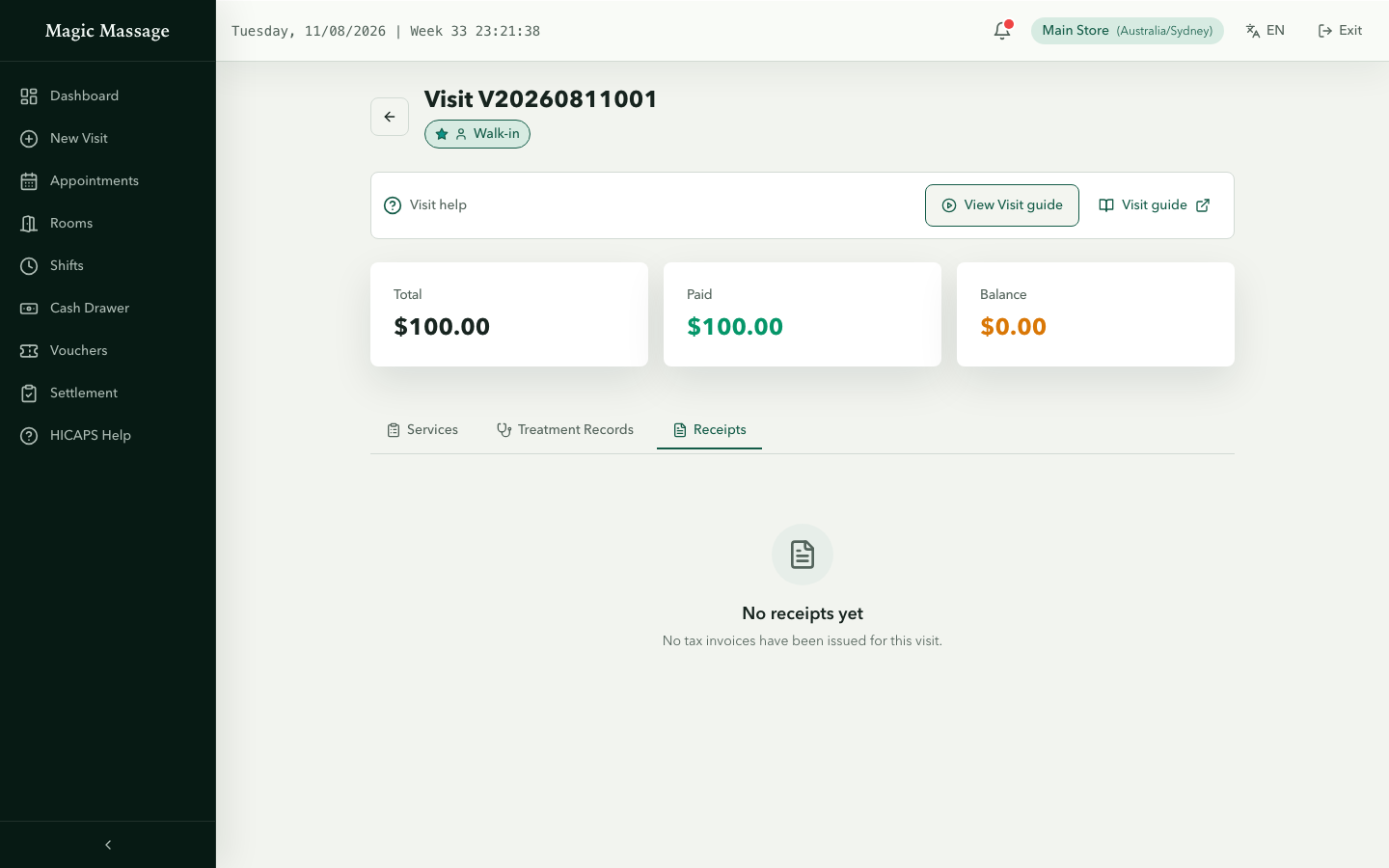
When to issue a tax invoice
- Customer requests a receipt for their health fund.
- Customer wants a formal record for their own books.
- Store policy to always generate one (some stores auto-prompt on close).
A tax invoice carries the Provider (therapist's registered name) and the Provider Number (insurance registration). Both must be correct for health fund claims.
Creating a tax invoice
- Open the visit detail page (after payment).
- Click Print Receipt (the button appears once the balance is zero and the visit has no HICAPS payment; for HICAPS visits, work from the Treatment Records tab instead).
- The Tax Invoice Modal opens:
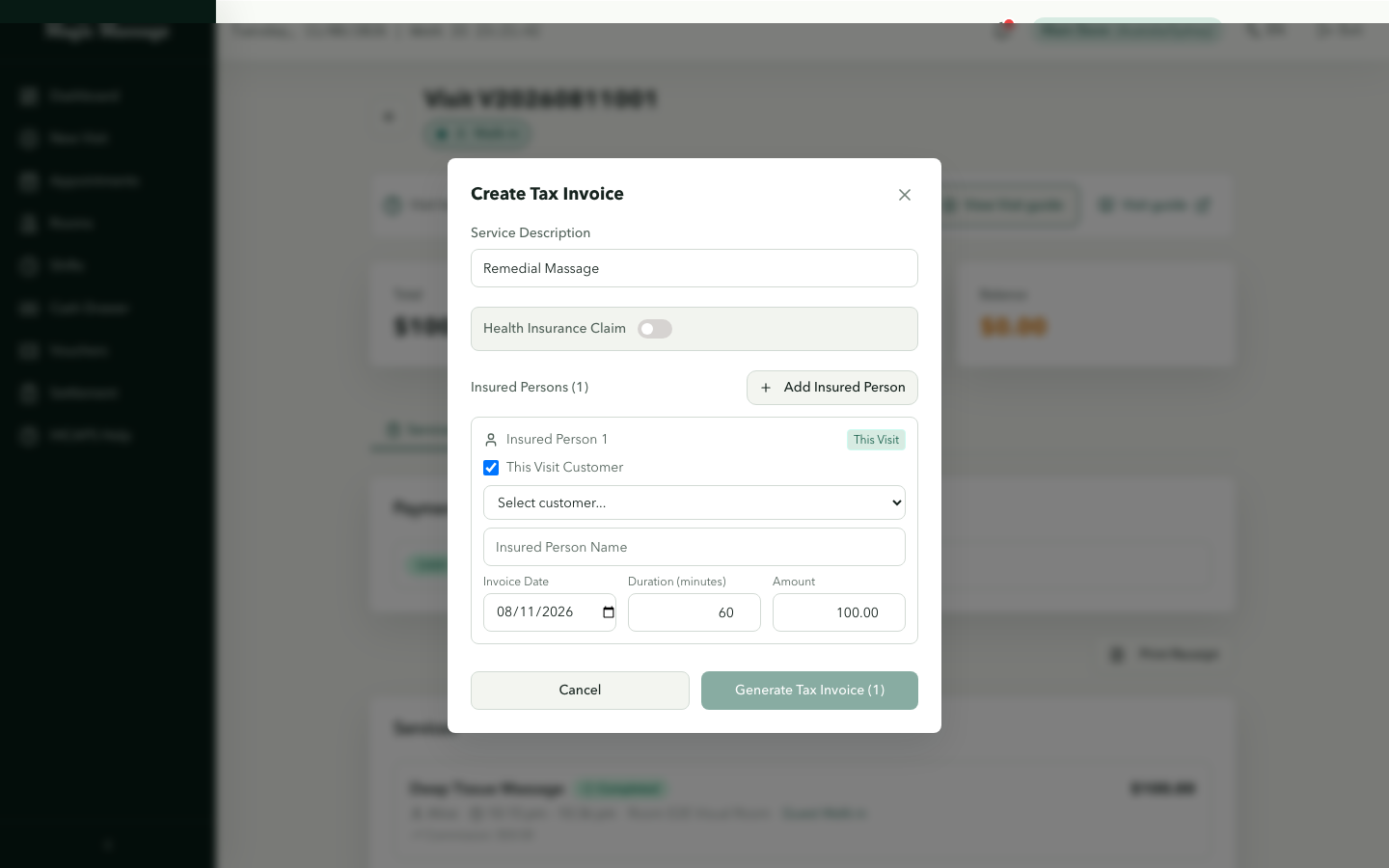
- For each insured person (the guest whose health fund will receive the claim):
- Toggle Health insurance claim if claiming.
- Select the Provider (therapist with a provider number).
- The insurance company determines which provider number is used. If the fund is not listed, choose Other (not listed) and type the fund's name for verification; the provider number is then filled automatically from the store's fallback group and cannot be typed.
- Adjust amount, duration and service date if needed.
- Choose the GST treatment: taxable supply (GST included in the price), GST-free supply — you must tick the confirmation that you have verified a GST-free basis; a health claim or provider alone is not one — or issuer not registered for GST. The server verifies your choice against the store's GST policy.
- PIN to create. One invoice per insured person is generated.
Multiple guests in a single visit? Each gets their own invoice line — the modal supports adding insured persons one by one. Each invoice is independent and can be printed, emailed or voided separately.
Printing to the Bluetooth receipt printer
The system prints to a 58mm thermal receipt printer (MPT-series or compatible) via Web Bluetooth.
First-time pairing
- Power on the printer and ensure Bluetooth is discoverable.
- Click Print on any invoice.
- The browser's Bluetooth pairing dialog appears — select your printer (name starts with
MPT). - Once paired, the printer reconnects silently for subsequent prints (as long as it stays on and in range) — no dialog the second time.
Printing a receipt
- On the receipts tab or the success panel after creation → click Print (printer icon).
- The receipt is formatted (ESC/POS) and sent in 60-byte chunks.
- The receipt includes: store details, the issuer ABN, provider info, services, amounts, and the frozen GST line (GST included / GST-free supply / Issuer not registered for GST).
📷 Screenshot placeholder — Printed receipt example
Reprints
Reprinting a previously printed invoice adds a *** REPRINT *** header to the thermal receipt. The system tracks print_count — managers can see how many times an invoice was printed.
Downloading the PDF
- Click Download PDF on any invoice.
- PIN verification.
- The PDF is generated server-side and downloaded to your device.
- The PDF is also automatically archived to the store's secure cloud storage.
Emailing the receipt
- Click Email PDF on any invoice — the Email Tax Invoice PDF dialog opens.
- Enter the recipient email address.
- Choose the language (English / 中文 / ไทย) for the email template.
- PIN verification.
- The system generates the PDF and emails it.
Check delivery status in Admin → Email log if the customer reports they didn't receive it.
Treatment Records
HICAPS payments and tax invoices create Treatment Record drafts on the Visit's Treatment Records tab (Pending completion). Complete the treatment details there; only a manager can lock a record. Corrections after locking are tracked in a timeline rather than overwriting the record.
Voided invoices
If an invoice was created in error, an Admin user can void it (one at a time, or all invoices of a visit in one batch):
- Voided invoices get a
*** VOID ***watermark on the PDF. - The voided PDF is re-archived.
- Voided invoices remain visible in history (nothing is deleted) but are clearly marked.
Troubleshooting
| Problem | Solution |
|---|---|
| Print button does nothing | Check printer is on, Bluetooth enabled on device, and printer name starts with MPT. Try re-pairing. |
| Bluetooth pairing dialog doesn't appear | Web Bluetooth requires HTTPS and a compatible browser (Chrome/Edge on desktop, Chrome on Android). Safari on iOS does not support Web Bluetooth. |
| Receipt prints garbled characters | Ensure the printer supports ESC/POS and 58mm paper width. Restart the printer. |
| Email not received | Check Admin → Email log. Common causes: typo in email address, full inbox, spam filter. Use "Retry" on the email log entry. |
| "No provider number" error | The selected therapist doesn't have a provider number registered for the chosen insurance company. Register one in Admin → Providers. |