Customers
The customer list in Admin gives managers visibility into the customer base — who has visited, their contact details (role-gated) and history.
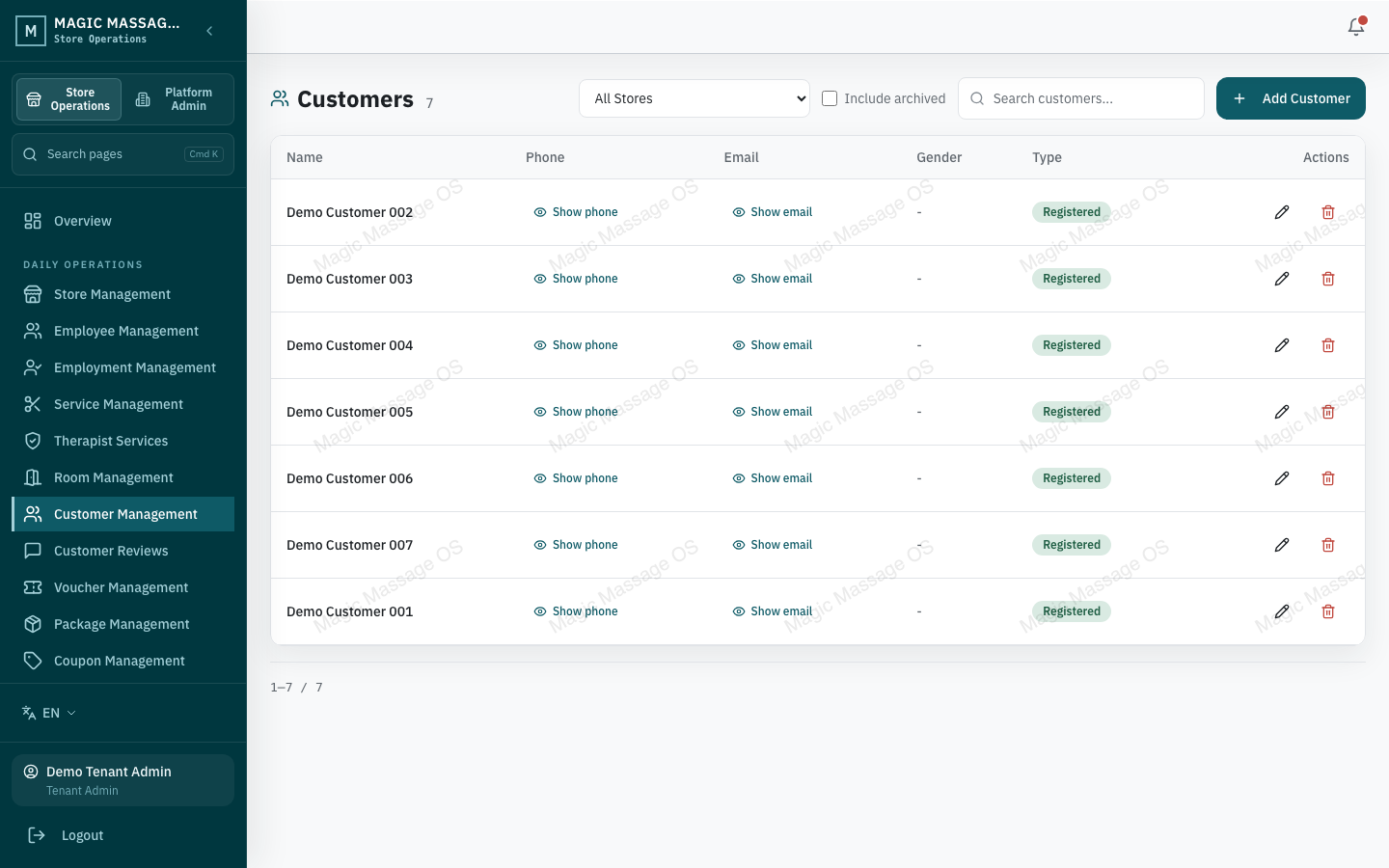
Customer list & search
Admin → Customers
The list is paginated, searchable and filterable by store. Features:
- Store filter: see customers who visited a specific store, or all stores.
- Include deleted toggle: soft-deleted customers can be viewed and restored.
- Search: partial match on customer names (legal or display name). Phone numbers are encrypted at rest, so phone search is not available.
Sensitive fields & masking
Customer phone, email and date of birth are encrypted at rest and hidden by default for every admin role except Super Admin:
| Field | Default display | Who sees it in plain text |
|---|---|---|
| Phone | Hidden — Show phone button | Super Admin inline; other admins via audited reveal (see below) |
| Hidden — Show email button | Same | |
| Date of birth | Hidden | Same — revealed together with phone/email |
Customer names are stored in plaintext to support search and are visible to anyone with customer list access.
Revealing the sensitive fields requires the customers.pii.reveal permission and access to the customer's store. Tenant admins hold this permission by default; regional managers do not (a tenant admin can grant it per role under role permissions). One click reveals the row's phone, email and date of birth together, and every reveal is audited (customer:pii_reveal — who, which customer, when, store) without recording the values themselves. On POS, customer search hides all three fields and only the phone can be retrieved, guarded by the operator's PIN. A watermark is displayed over the customer list to discourage screen capture.
Creating a customer (Admin)
- Customers → Create.
- Fill name (required — first, middle and last name as needed) and optionally phone, email, DOB, gender, notes and Preferred language, which decides the language of the customer's booking, reschedule and receipt emails.
- Save.
Names are trimmed and Unicode-normalised without changing capitalisation or punctuation. Gender is optional and includes “Prefer not to say” and “Self-described”. Phone currently accepts Australian numbers only and saves them in +61… form; email syntax is checked before saving.
After a customer with a phone number is saved, MMOS may show Possible duplicate matches from the same Store. The warning shows only minimum identity and a masked phone number. It does not block saving, merge records or search other Stores; review the candidates before deciding whether any separate cleanup is needed.
Most customers are created at POS during visit creation — Admin creation is for pre-loading or importing.
Editing a customer
Select a customer → edit any field. Changes save immediately. The customer's visit history stays linked regardless of name changes.
Anonymous walk-ins
Walk-in customers created at POS without details appear as Anonymous in the list. They can be enriched later (add name/phone) — the system links past visits automatically.
Returning-guest marking
If your store uses the returning-guest feature:
- On POS, the therapist marks a service as "returning guest" (see Services).
- In Admin, the Returning Customer Marks page shows these marks for reporting and commission purposes.
Soft delete & restore
- Delete (soft): removes the customer from active lists. Historical visit records remain.
- Restore: toggle "Include deleted" → find the customer → Restore.
Customer deletion is soft — data is retained for financial and audit integrity. If GDPR/privacy erasure is needed, contact your platform admin for a data export + hard-delete request.
Customer reviews (moderation)
Admin → Customer Reviews (permission reviews.moderate; tenant admins and regional managers have it by default).
Customers rate their own completed visits from the customer account portal within 30 days of the visit — one review per visit, 1–5 stars plus an optional comment. Nothing is published until you moderate it.
- Pick the Store (reviews are exact-Store; there is no all-stores view).
- Filter by Pending (default), Approved or Rejected.
- For a pending review, optionally type a short reason (the customer sees it), then Approve or Reject. Decisions are final and audited; a review that was already moderated cannot be changed.
What the public sees: approved reviews only, newest first, each with a Verified visit badge and the reviewer's first name plus last-name initial (never phone or email). The store's average rating is only shown once 5 or more reviews are approved — until then the page shows the review count only.