Getting into POS
Open the POS address
On the store device, open pos.magicmassage.com.au in the browser and add it to the home screen / bookmarks bar. POS is a web app — there is nothing to install.
Activate the device (first time only)
- On the activation screen, enter your store's 6-digit activation code (provided by the owner or your implementation contact).
- No code to hand? Tap Use Store UUID instead and enter the Store UUID and Device PIN the owner gives you.
- The device is now bound to your store and stays signed in.
One active device per store. Activating a second device signs the first one out immediately. If the counter tablet unexpectedly lands on a re-authentication screen, the most common cause is that someone activated POS elsewhere. Re-activate deliberately on the device you actually want at the counter.
Identify yourself (operator PIN)
The device knows the store. Select your own operator identity so routine lower-risk actions are attributed to you; these actions can continue without re-entering your PIN. Sensitive or elevated actions ask you to verify with your PIN and are recorded under the verified operator.
- If your store issues staff QR badges, scanning your badge pre-selects you as the operator; high-risk actions still ask for your PIN.
- PINs are personal. Never share them.
- 3 wrong attempts → locked 15 minutes. Manager can reset your PIN in Admin → Staff.
The POS screen at a glance
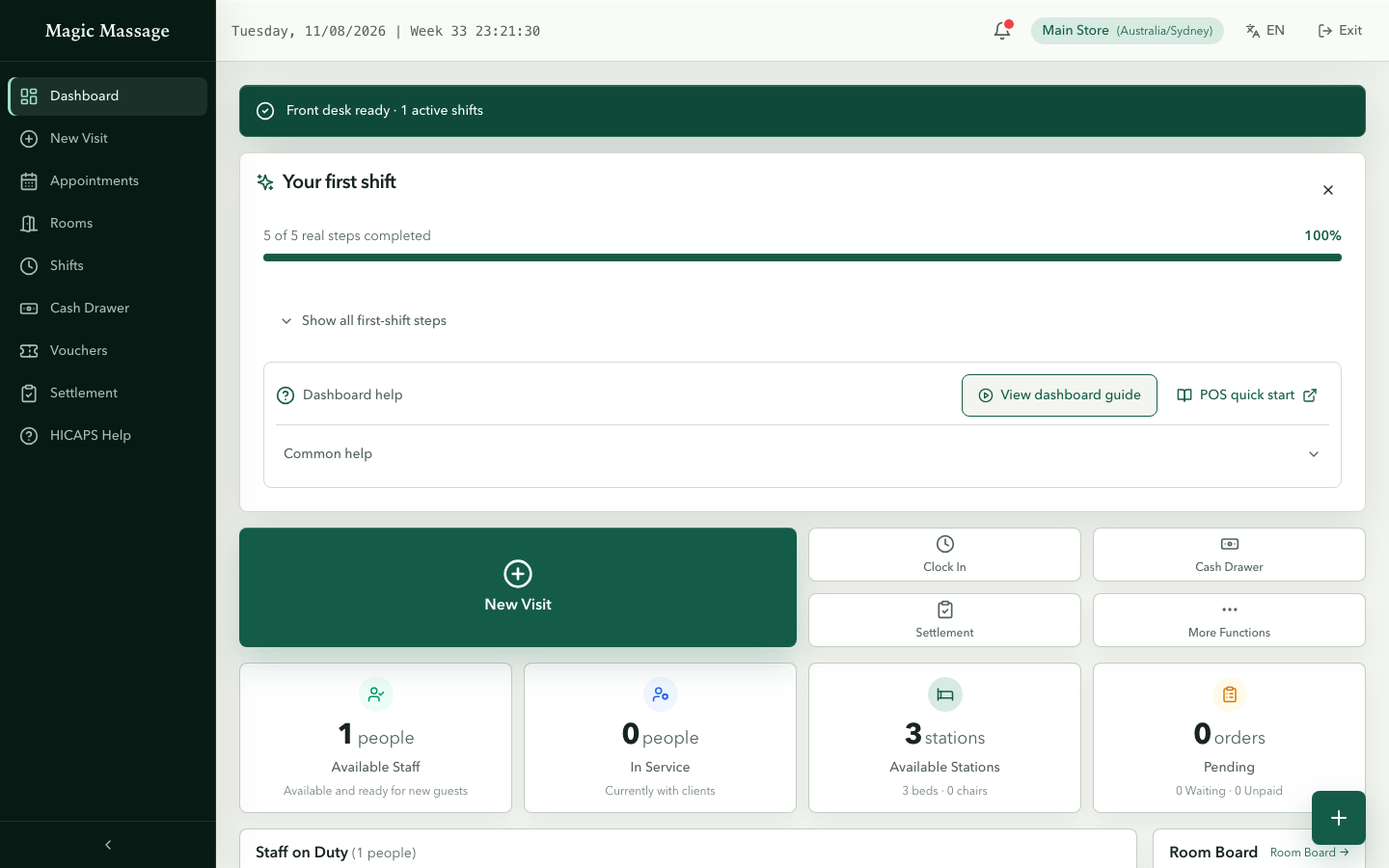
| Area | What it shows |
|---|---|
| Sidebar (collapsible) | Navigation: Dashboard, New Visit, New sale, Appointments, Rooms, Shifts, Cash Drawer, Vouchers, Online orders, Settlement, HICAPS Help |
| Summary tiles | Four tiles — Available Staff, In Service, Available Stations (beds · chairs) and Pending (waiting service · waiting payment). No revenue figure here. |
| Primary action | One button that changes with readiness — Clock In, then Open Cash Drawer, then New Visit — plus shortcut tiles for Shifts, Cash Drawer, Settlement and More Functions |
| Floating + button | Bottom-right on every page except Visit detail: short press starts a New Visit; long press opens New Visit, Sell Voucher and New Booking |
| Next Booking | The next upcoming appointment for today, with a link to Appointments |
| Staff table | Who is on duty and what they're doing right now |
| Room grid | Colour-coded room status (available / occupied / cleaning / maintenance) |
| Pending panels | Left: waiting to be served. Right: waiting to be paid. |
| Notification bell | System messages and platform announcements |
Every page has a help button with common answers and a short guided tour (for example View dashboard guide). The dashboard also shows a Your first shift Getting Started checklist that tracks real milestones; you can dismiss it during service and reopen it later.
Switching language
If your store uses more than one language, use the language switcher in the top bar (globe icon). Your choice sticks to the device. Store-specific wording overrides (e.g. what you call a "Visit") are configured by your manager in Admin.
Can't get in?
| Symptom | Likely cause | Fix |
|---|---|---|
| Activation screen instead of dashboard | Device was never activated, or another device took over | Enter the activation code (get a fresh one from the owner if needed) |
| "No active shift" when creating a visit | You haven't clocked in | Start your shift first |
| PIN rejected repeatedly | PIN locked (3 wrong attempts) | Wait 15 minutes or ask a manager to reset it |
| Page won't load | Network | Check the store connection; POS needs internet |